GitOps
GetApp supports GitOps-style project management by linking a GetApp project to a Git repository hosted on GitHub, GitLab, or any compatible Git server. When a .getapp file is committed to the repository, GetApp can automatically detect it, create a new release, and import all referenced artifacts.
Overview
The GitOps integration works in two complementary modes:
- Periodic sync — GetApp polls the configured Git repository at a fixed interval and syncs whenever a new version is detected in the
.getappfile. - Webhook-driven sync — GitHub or GitLab sends a push event to a generated webhook URL, triggering an immediate sync.
Both modes follow the same flow:
- Clone the repository (using SSH or HTTPS credentials)
- Read and parse the
.getappfile - If the version in the file is new, trigger a release import in the upload service
- Artifacts listed in the
.getappfile are downloaded from theirdownloadUrlvalues and stored in object storage
Configuring GitOps in the Dashboard
GitOps settings are available under Advanced Settings → GitOps when creating or editing a project.
New project
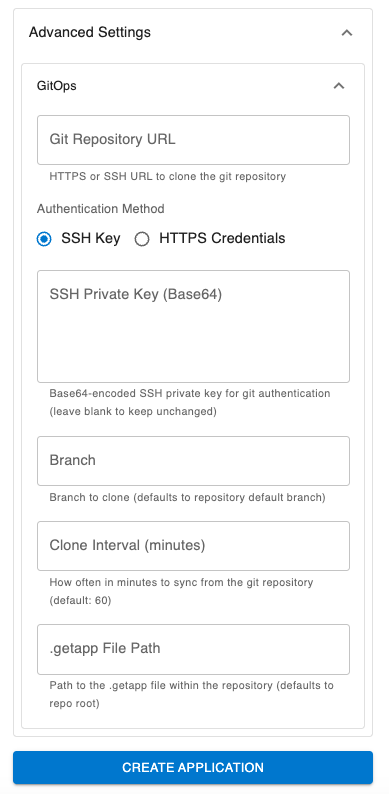
When creating a project, fill in the GitOps fields are display under the advanced settings section:
Existing project
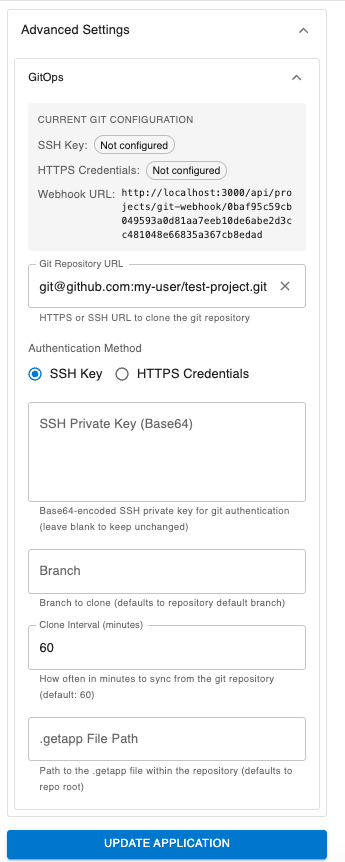
When a project with a Git source is opened, a CURRENT GIT CONFIGURATION summary appears at the top of the panel showing whether an SSH Key and HTTPS Credentials are configured, and the generated Webhook URL:
Available fields
| Field | Description |
|---|---|
| Git Repository URL | HTTPS or SSH URL of the repository to clone (e.g. git@github.com:my-org/my-project.git) |
| Authentication Method | SSH Key or HTTPS Credentials |
| SSH Private Key (Base64) | Base64-encoded SSH private key. Leave blank to keep the existing key unchanged. |
| Branch | Branch to clone. Defaults to the repository's default branch if left empty. |
| Clone Interval (minutes) | How often GetApp polls the repository. Defaults to 60. Set to 0 to disable periodic sync. |
| .getapp File Path | Path to the .getapp file within the repository. Defaults to .getapp in the repository root. |
Authentication Methods
SSH Key
Provide a Base64-encoded SSH private key. GetApp clones the repository using this key inside a fully isolated temporary directory — the host machine's ~/.ssh is never read or written.
To encode an existing private key:
base64 -w 0 ~/.ssh/id_rsa
HTTPS Credentials
Provide a username and a password or personal access token. Credentials are embedded in the clone URL at runtime and are never written to disk in plaintext.
When HashiCorp Vault is configured (see Secure Credential Storage with Vault), neither SSH keys nor HTTPS passwords are stored in the database. Only a Vault reference string is persisted.
The .getapp File
The .getapp file is a JSON document that describes a release. It must be placed at the repository root or at the custom path set in the .getapp File Path field.
Files with a .getapp extension are also supported (e.g. project.getapp, config.getapp).
Required fields
| Field | Description |
|---|---|
version | Release version string |
Full example
{
  "name": "",
  "version": "9.3.5",
  "tag": "v9.3.5",
  "createdAt": "2026-04-09T08:05:20.242Z",
  "project": "my_project",
  "status": "released",
  "releaseNotes": "",
  "author": "test@example.com",
  "metadata": {
    "totalSize": 111611908,
    "autoDeploy": true,
    "installationSize": 0,
    "postInstallAction": {
      "type": "NONE"
    }
  },
  "artifacts": [
    {
      "name": "my_project.tar",
      "size": 111607808,
      "sha256": "b980ccb24db909dc5dab63f367528d94120b2ed4841c294984a5f6007fb7881b",
      "downloadUrl": "https://minio-api/getapp/upload/release/30/9.3.5/my_project.tar",
      "metadata": {}
    },
    {
      "name": "my_project.sh",
      "size": 4100,
      "sha256": "be1ae5672c5daf476e358eba5329df82ef98391fa93e0d7a507324d7c20b45cb",
      "downloadUrl": "https://minio-api/getapp/upload/release/30/9.3.5/my_project.sh",
      "metadata": {}
    }
  ],
  "dockerImages": [],
  "dependencies": []
}
Each artifact entry must include a downloadUrl pointing to a publicly or privately accessible file. GetApp downloads and stores each artifact in object storage (MinIO/S3) as part of the release import.
Sync Mechanisms
Periodic Sync
When Clone Interval is set to a positive number, GetApp polls the repository every N minutes. On each poll:
- The repository is cloned (shallow clone,
--depth 1) - The
.getappfile is read and theversionfield is inspected - If the version is new (no existing release with that version), a release import is triggered
- If the version already exists, the sync is skipped — no duplicate releases are created
Multiple GetApp microservice instances are protected against concurrent duplicate syncs via in-process locking per project.
Webhook
Each project is assigned a unique, randomly generated webhook URL. It is displayed in the CURRENT GIT CONFIGURATION panel under Webhook URL:
https://<your-getapp-host>/api/projects/git-webhook/<token>
Configure this URL as a push webhook in your Git hosting provider. GetApp returns 200 OK immediately and processes the sync asynchronously.
GitHub:
- Go to Settings → Webhooks → Add webhook
- Set Payload URL to the webhook URL shown in the dashboard
- Set Content type to
application/json - Select Just the push event
- Click Add webhook
GitLab:
- Go to Settings → Webhooks
- Set URL to the webhook URL shown in the dashboard
- Enable Push events
- Click Add webhook
A webhook push and a concurrent periodic sync for the same project are automatically deduplicated — only one sync executes at a time per project.
Release Import Flow
Git push or schedule triggers sync
              │
              ▼
Clone repository (shallow, isolated temp directory)
              │
              ▼
Read and validate .getapp file
(version, createdAt, author required)
              │
              ▼
Check if release with this version already exists
              │
    ┌─────────┴──────────┐
  exists              new version
    │                    │
  skip           Trigger release import
                         │
                         ▼
              Artifacts downloaded from
              their downloadUrls and stored
              in MinIO / S3
                         │
                         ▼
              Release created and visible
              in the Releases view
The temporary clone directory (including any SSH keys written to disk) is always deleted after the sync, whether it succeeds or fails.
Secure Credential Storage with Vault
By default, SSH keys and HTTPS passwords are stored as plain text in the database. When HashiCorp Vault is configured, credentials are stored in a Vault KV v2 secret engine and only a Vault reference string is persisted in the database column.
Environment Variables
Set the following environment variables on the project-management service:
| Variable | Description |
|---|---|
VAULT_ADDR | Vault server address (e.g. http://vault:8200). When unset, Vault integration is disabled. |
VAULT_MOUNT_PATH | KV v2 mount path. Defaults to getapp-secrets. |
VAULT_TOKEN | Static Vault token. Takes priority over AppRole auth. |
VAULT_ROLE_ID | AppRole Role ID. Used together with VAULT_SECRET_ID. |
VAULT_SECRET_ID | AppRole Secret ID. Used together with VAULT_ROLE_ID. |
Vault is enabled automatically when any authentication credential is present (VAULT_TOKEN, or both VAULT_ROLE_ID and VAULT_SECRET_ID). If none are set, the service operates in plain-text mode with no change in behaviour.
Authentication Priority
- Static token —
VAULT_TOKEN(orVAULT_DEV_ROOT_TOKEN_IDfor dev mode) - AppRole —
VAULT_ROLE_ID+VAULT_SECRET_ID
Secret Layout
Each project's git credentials are stored at the following path inside Vault:
<VAULT_MOUNT_PATH>/git_credentials_gs_<gitSourceId>
The secret contains one or both of the following fields depending on the configured authentication method:
| Field | Content |
|---|---|
ssh_key | Raw (decoded) SSH private key |
https_password | HTTPS password or personal access token |
Required Vault Policy
The project-management service requires the following minimum policy:
path "getapp-secrets/data/*" {
  capabilities = ["create", "update", "read"]
}

path "getapp-secrets/metadata/*" {
  capabilities = ["read", "create", "update", "delete", "list"]
}
Leave VAULT_ADDR unset for simpler deployments. Vault can be added at any time — existing plain-text credentials continue to work until they are next updated, at which point they are automatically migrated to Vault.