Project Detail
Everything about one project, across six tabs.
Permission level: Developer portal access; some tabs and actions need project-specific roles noted below.
Where it lives
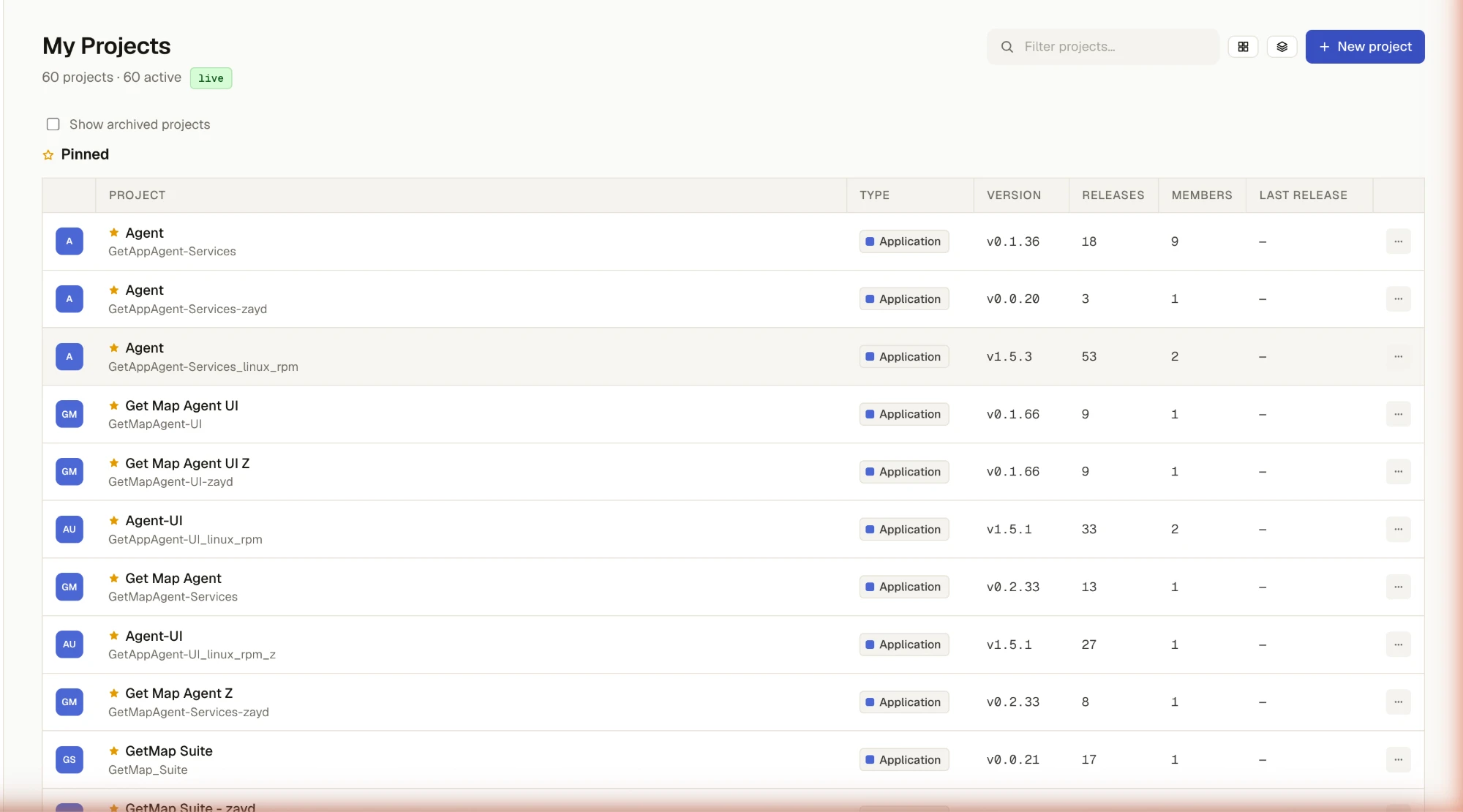
Open any project from My Projects or My Releases.
Overview
Summary of the project and its latest release at a glance.
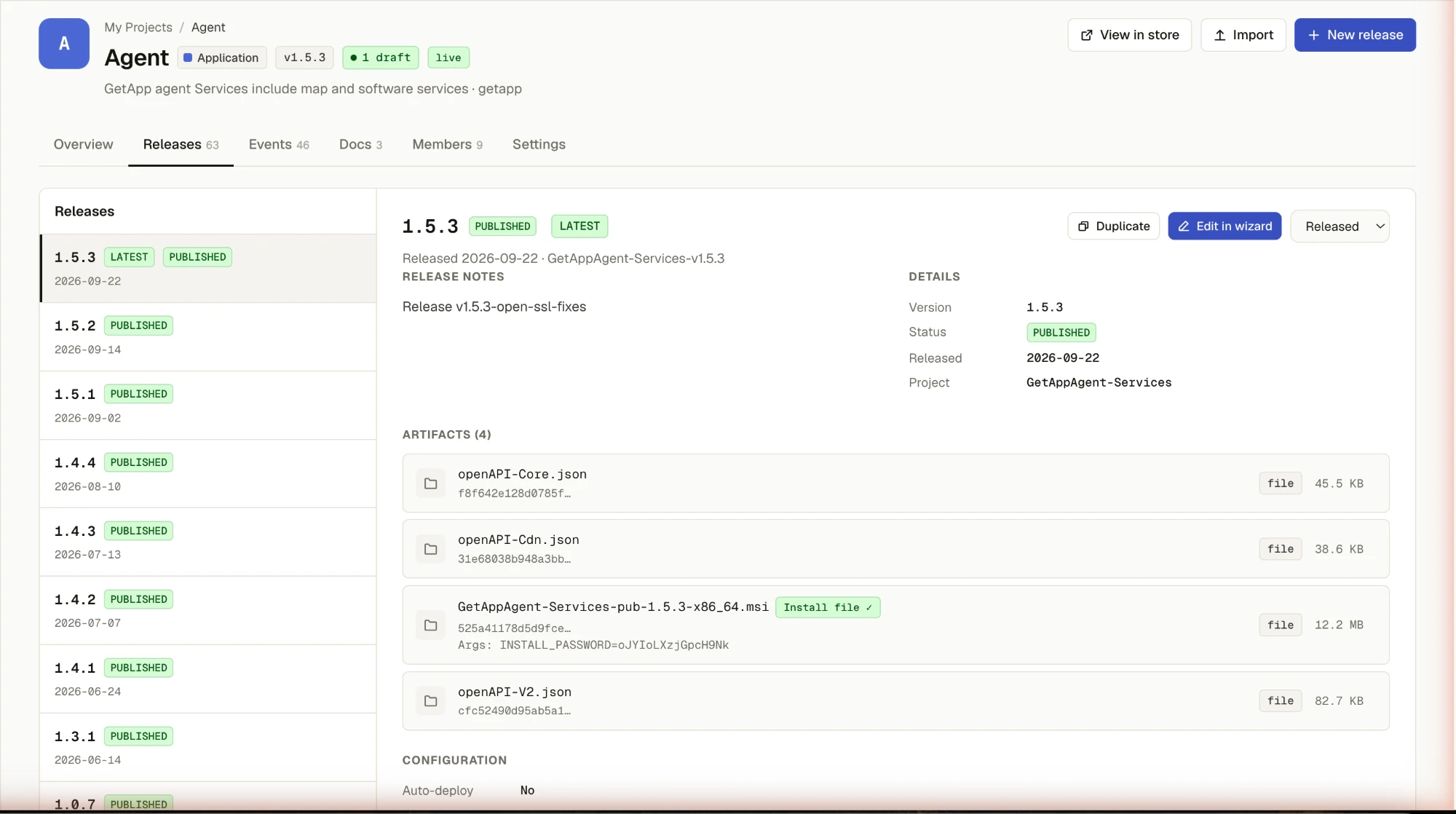
Releases
Every release of this project. See Release — Overview for what a release is made of, and ConfigMap if this is a Configuration-type project.
Events
A project-scoped activity log — discovery, delivery, deploy, upload, SBOM scan, and Git
sync events (git_sync_success / git_sync_failed — see GitOps below), each with
a severity and timestamp. Filterable by text.
Docs
The project's own documentation. Each doc is either a Markdown page or an external link
(an http(s) URL that opens in a new tab).
- New doc — give it a name, choose Markdown or External link, and save
- Edit — change the name, type, content, or link of an existing doc
- Delete — remove a doc (you're asked to confirm)
Members
Who has access to this project, separately from the platform-wide Admin roles.
- Invite by email — a debounced search against the user directory assists you, but a typed email is valid even with no match; assign a role: project-owner, project-admin, or project-member
- Remove a member from the project
Settings
General
The same fields as the New Project wizard:
| Field | Notes |
|---|---|
| Project name | Also the project ID, used in URLs and by devices. Same rules as in the wizard: no spaces, not only digits, no @. Renaming also updates the display name |
| Software Type | Application or Infrastructure — see Software Type. A project created with another type keeps it until you change it |
| Categories | Pick an existing category or type a new one — see Categories |
| Summary | A short one-line summary, up to 20 characters — see General |
| Tags | Up to three tags, edited as chips — see Tags. Shown under the project name at the top of this page |
| Description | A longer description, max 500 characters |
Save changes sends only the fields you changed. Emptying a field and saving clears it — unless the deployment made that field required (marked *, see Required or optional fields). In that case the save is blocked with a message listing the fields to fill in. The same applies to the GitOps fields below.
GitOps
Sync this project's releases from a Git repository instead of authoring them by hand:
| Field | What it does |
|---|---|
| Repository URL | The Git clone URL. Nothing else here matters until this is set |
| Branch | Which branch to track |
| Clone interval | How often (in minutes) to poll the repo — defaults to 60 |
| HTTPS username / password | Credentials for a private repository |
| GetApp file path | Path within the repo to the file GitOps reads for release definitions |
A successful or failed sync shows up as a git_sync_success / git_sync_failed event on the
Events tab, so that's the first place to check if a sync isn't behaving as
expected.
To stop syncing, empty the Repository URL and save — this removes the Git connection. Emptying Branch or GetApp file path resets them to the repository default. Credentials are only changed when you type new ones; the password field is always shown empty.
Danger zone
Archive hides the project from the store after you confirm; existing installs are unaffected. You're taken back to My Projects, where archived projects can be shown and restored.