Tier 1 – AppStore Agent (Field)
This guide is for Tier 1 agents — the first line of support. Follow the interactive decision trees by issue type. If the issue is not resolved, escalate to Tier 2 / Desk with a summary of the steps you took.
💡 Each decision tree has an English / עברית toggle in the corner (English by default), plus Back / Start over controls.
The Agent AppStore
The issues below are reported from the Agent AppStore on the device. Each application card shows its status and a download / retry control.
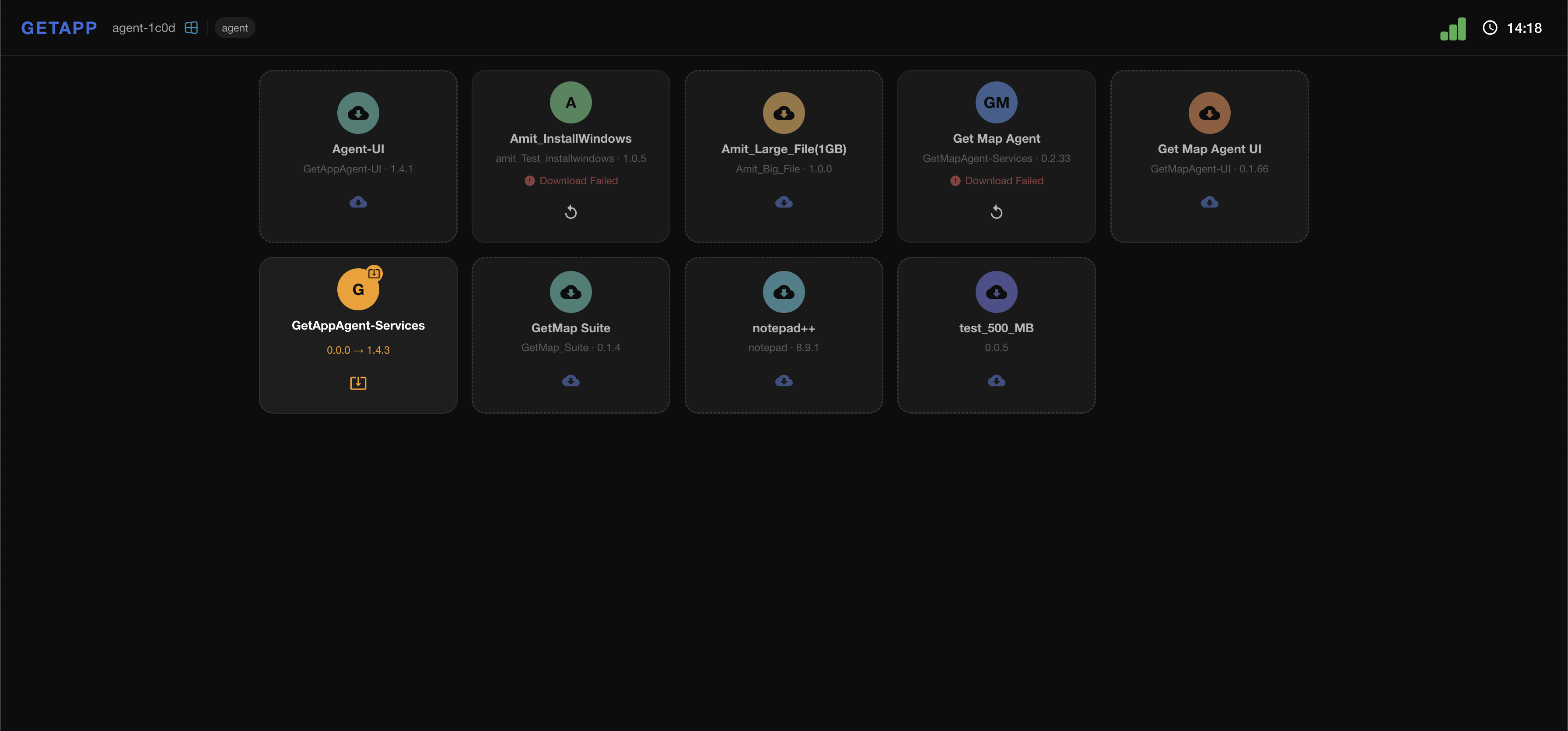
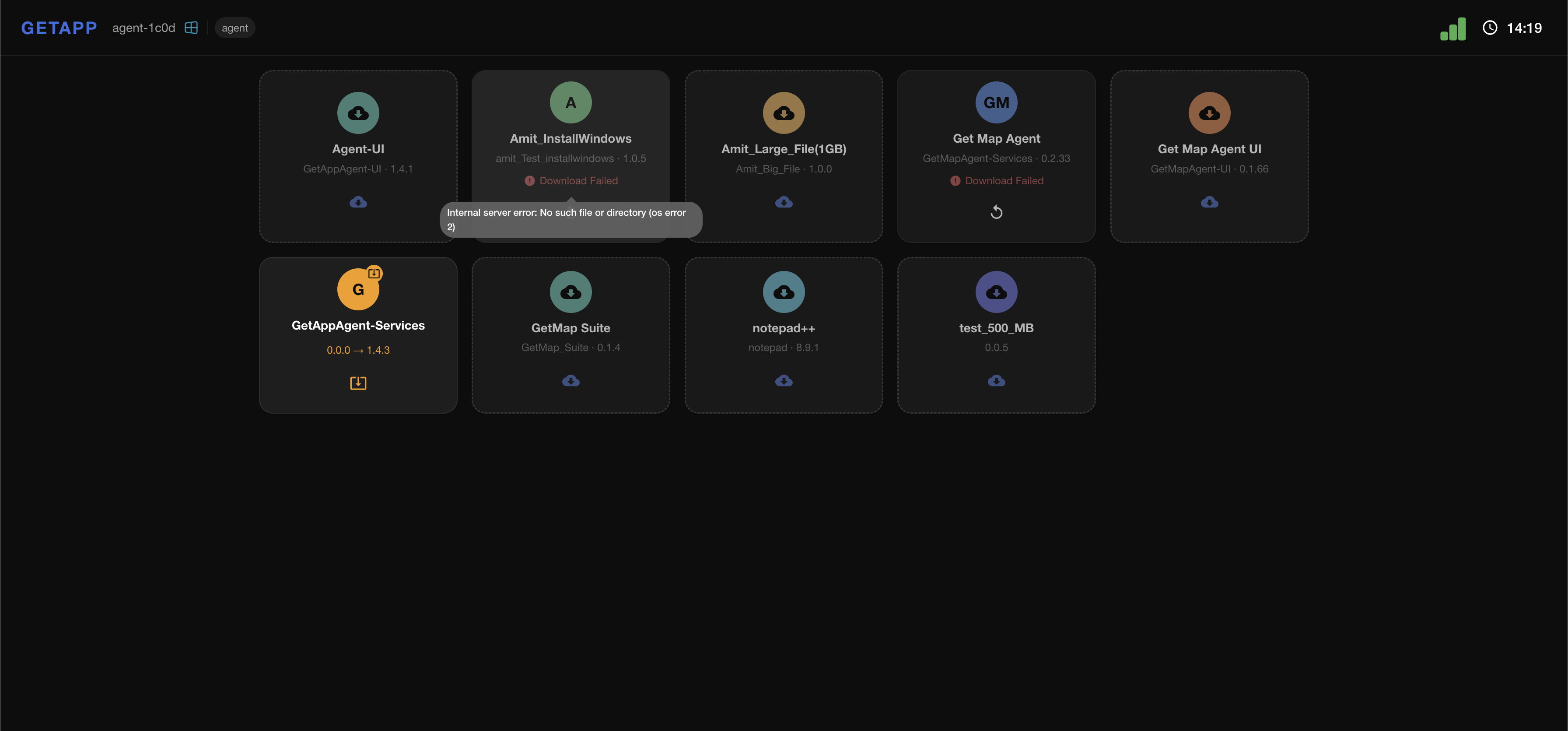
When a download fails, the card shows a red Download Failed label and a retry button ↺. Hovering the failed card reveals the exact error message — collect it before escalating.
1. Cannot See Release
Issue sign: The agent opens the AppStore and cannot see the expected release.
- Removable Media 🖥️
- Cellular 📱
2. Download Failed / Stuck
Issue sign: The agent attempts to download a release and it fails or gets stuck mid-download.
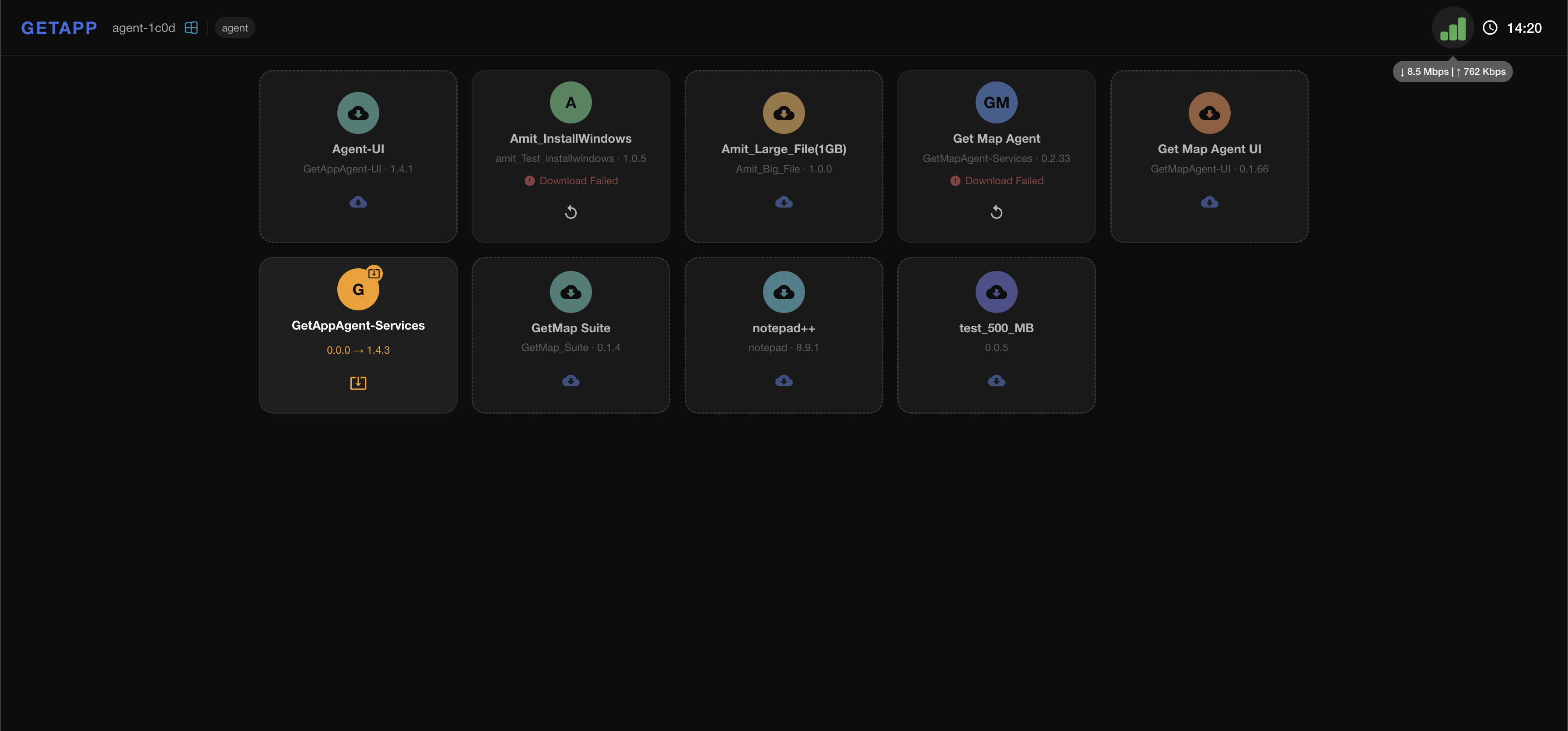
The network indicator in the top bar shows whether the device currently has connectivity (and the current down / up speed) — check it first.
- Removable Media 🖥️
- Cellular 📱
- Disconnect the device from the removable media.
- Wait one minute.
- Reconnect the media.
- Retry the download.
3. Before Escalating — What to Collect
Collect all of the following before contacting Tier 2 or Desk.
| # | Question | Where to Find It |
|---|---|---|
| 1 | What is the OS? (Windows / Linux) | Ask the agent directly |
| 2 | What is the DeviceType? (Agent / Other) | GetApp interface → Device details |
| 3 | Did "Download Failed" + retry button ↺ appear? | Screenshot from the agent |
| 4 | What is the error message? | Hover over the failing card → read the tooltip |
| 5 | Is there an active internet connection? | Check the network icon — ↓ ↑ Mbps |
Escalation Template
Escalation to Tier 2 / Desk
============================
Issue: [ Cannot see release / Download failed / Other ]
Connection type: [ Removable media / Cellular ]
OS: [ Windows / Linux ]
DeviceType:
Error message:
"Download Failed" + retry button ↺ visible: [ Yes / No ]
Internet connection available: [ Yes / No ]
Steps performed:
  1.
  2.
  3.
Legend
| Symbol | Meaning |
|---|---|
| ✅ | Yes / Resolved / Success |
| ❌ | No / Failure |
| ⚠️ | Warning / Action required |
| 🔴 | Escalation required |
| ↺ | Retry button |
This document is Part 1 of the GetApp troubleshooting docs — Tier 1. Next → see Tier 2 – AppStore Agent and Tier 2 – Server.