Tier 2 – AppStore Agent
This guide is for Tier 2 / Desk, after Tier 1 has exhausted the field steps. Work through the decision trees against the Server Dashboard, the Catalog, and the Edge Devices views.
💡 The decision trees below default to English; use the toggle in each tree for עברית.
The Server Dashboard
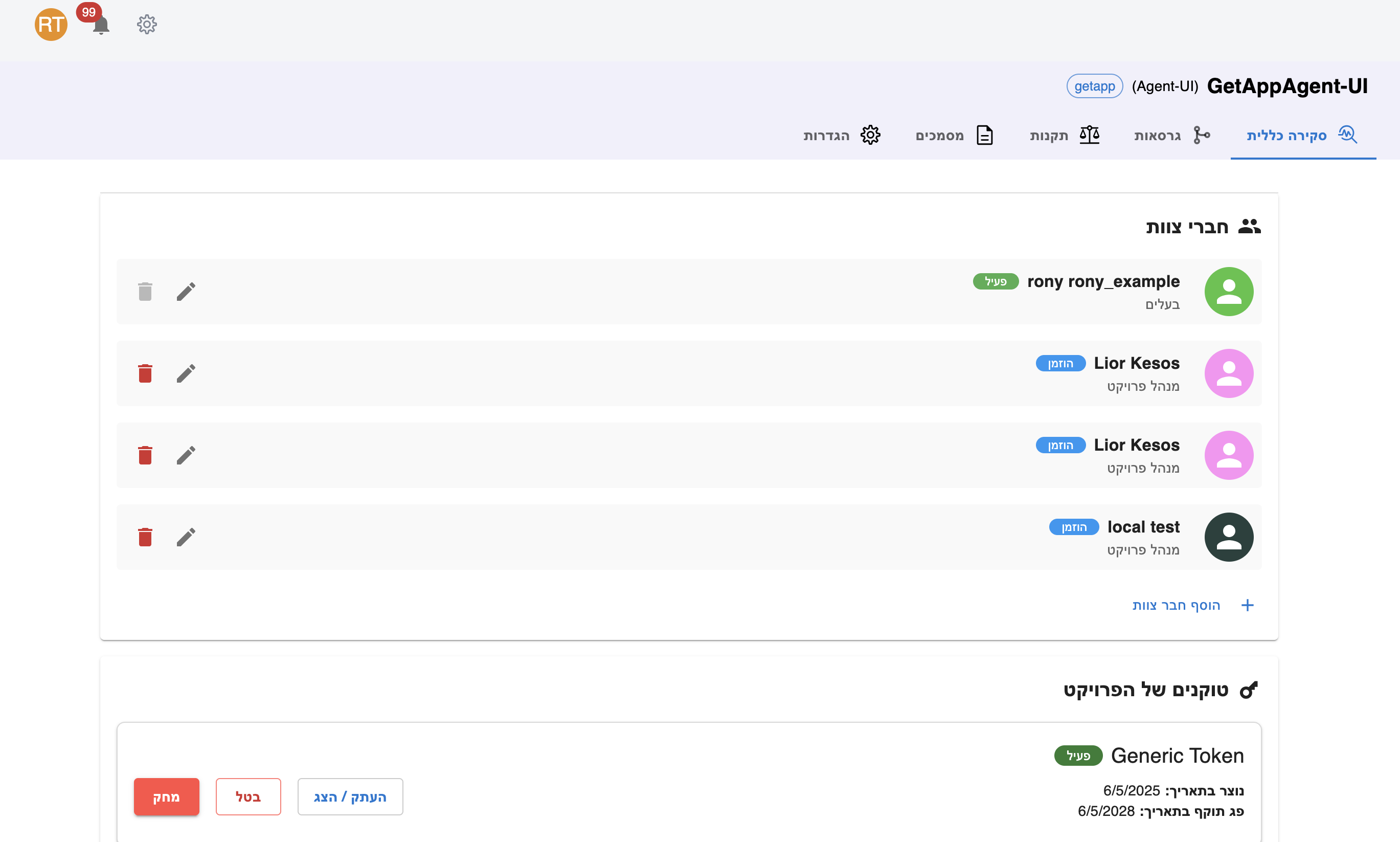
Most Tier 2 checks happen from the Server Dashboard. Open the project to reach its Overview, Versions, and Artifacts.
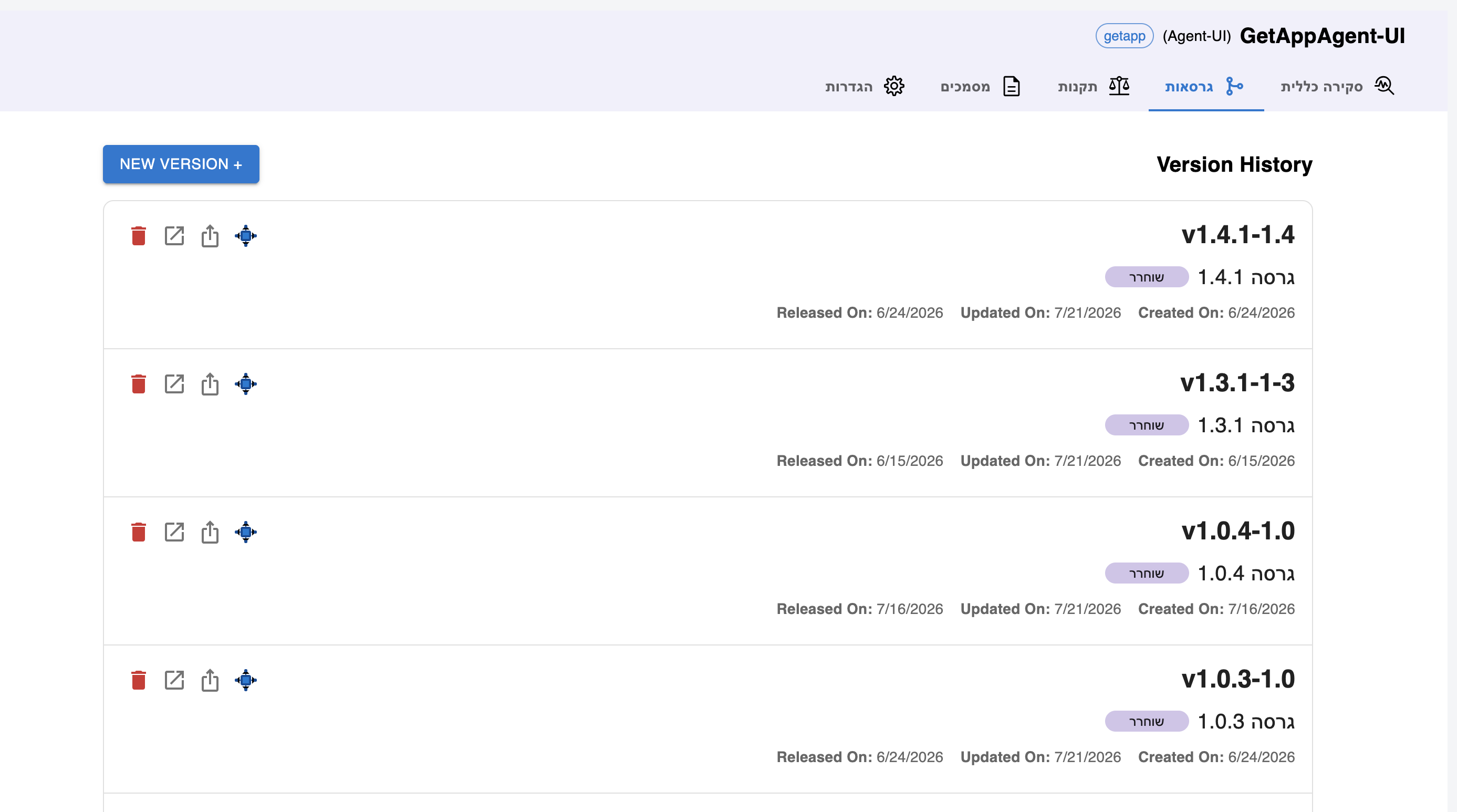
The Versions tab lists the version history, each with its release status.
1. Cellular: Cannot See Release
When: The device does not display the desired release after all Tier 1 steps.
Start in Edge Devices: search the device by name and expand its versions by OS to confirm what the device is actually offered.
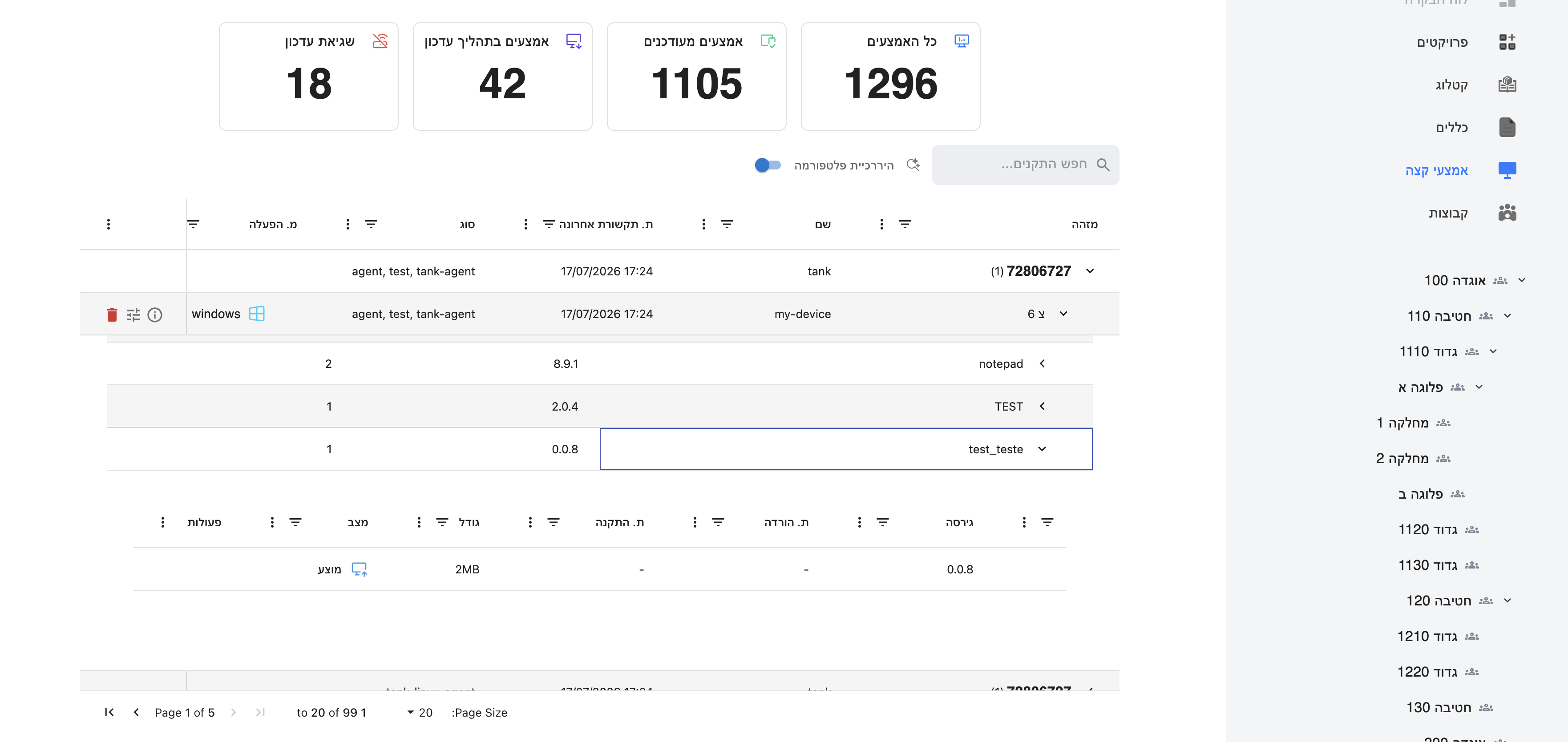
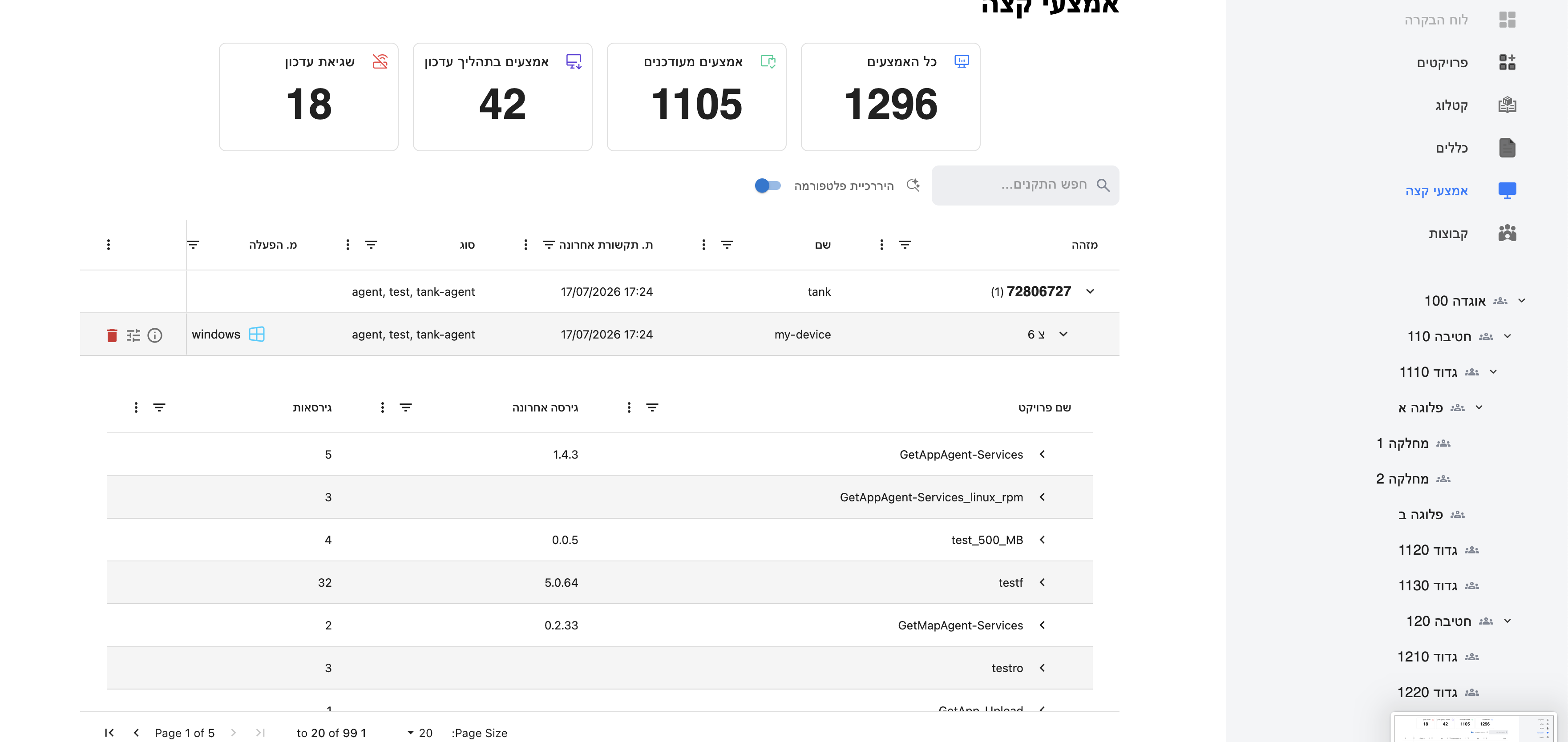
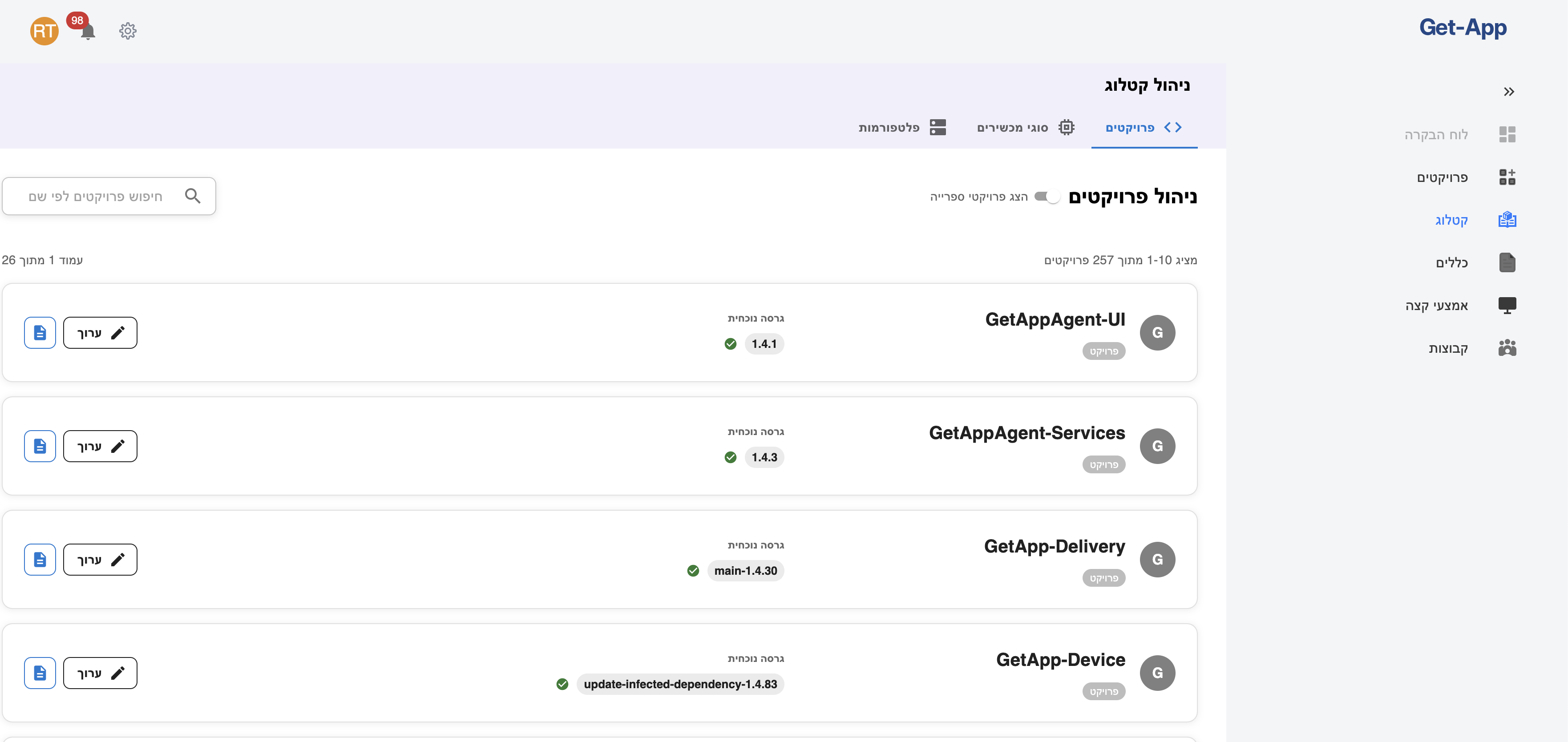
If the version is missing, the fix usually lives in the Catalog — either the
project's version status is not Release, the rule is not linked, or the
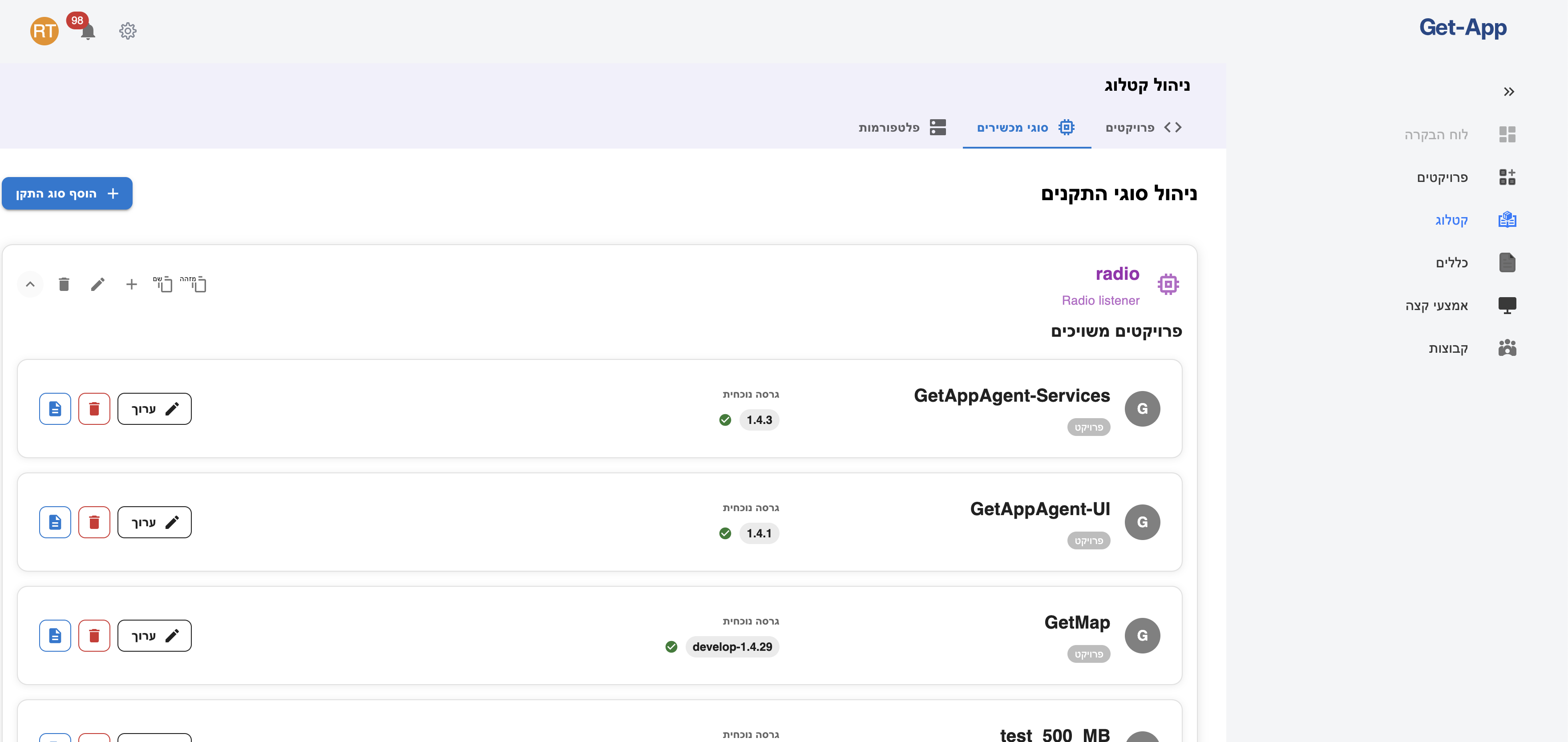
DeviceType (Catalog → DeviceTypes) does not include the component / version.
- Catalog → Projects
- Catalog → DeviceTypes
- Assign a version
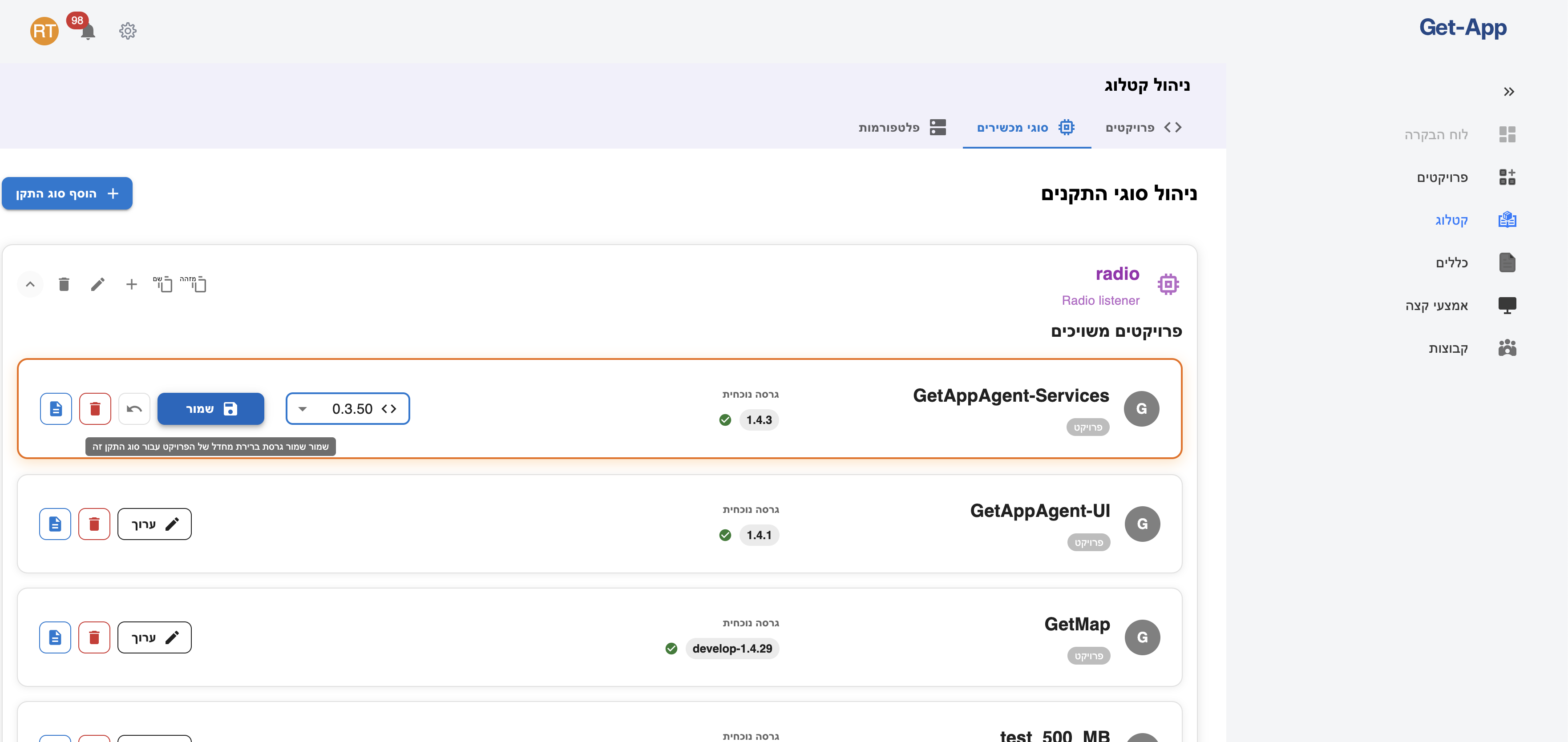
Use the version dropdown on a DeviceType's project to set the default version offered, then Save.
Now follow the decision tree:
- Get from the agent: store name and OS (Windows / Linux).
- Open Edge Devices in the GetApp interface.
- Search the device by name and expand the Versions-by-OS list.
2. Cellular: Download Failed
When: Download failed and was not resolved after a Tier 1 retry.
First, reproduce the download straight from the Dashboard: open the version's Artifacts section and click the download icon (↓) next to the artifact.
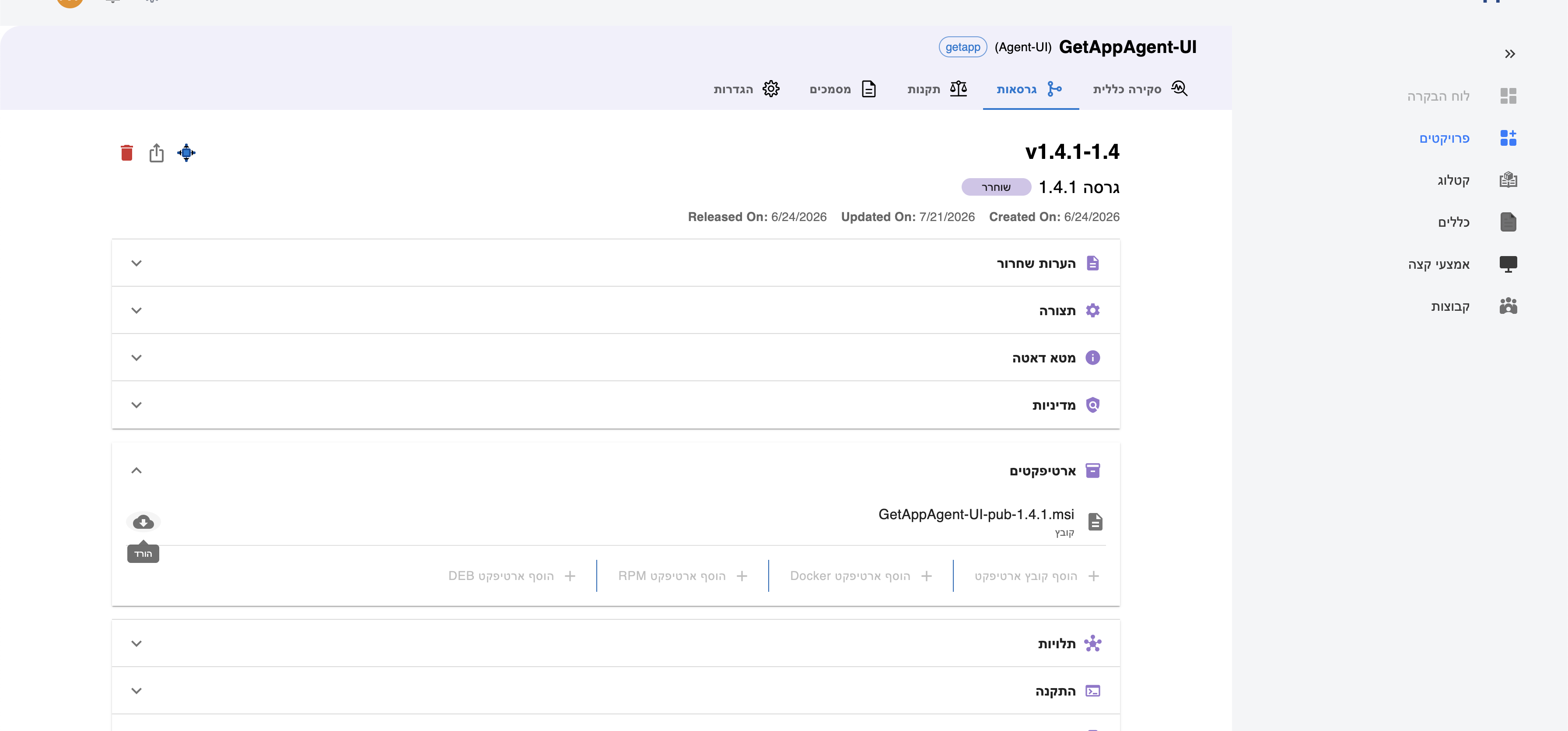
- Open Dashboard → Version page → Artifacts.
- Click the download icon (↓) directly from the dashboard.
Final Action — No Disk Space
The decision tree points here when there is no free disk space.
This action destroys data — ensure you have a backup before proceeding.
# 1. Delete the MinIO volume
docker volume rm <minio_volume_name>

# 2. Run a reset
docker-compose restart   # or the relevant command for your environment

# 3. Retry the download
Legend
| Symbol | Meaning |
|---|---|
| ✅ | Yes / Resolved / Success |
| ❌ | No / Failure |
| ⚠️ | Warning / Action required |
| 🔴 | Escalation required (developer support) |
Next → see Tier 2 – Server.