Platform Table
The Platform Table is the fleet view of every registered platform — search, filter, and act on platforms from one screen. It's the landing page of the Admin portal's Platforms nav item.
Permission level: Admin
Overview
Admin → Platforms (/admin/platforms).
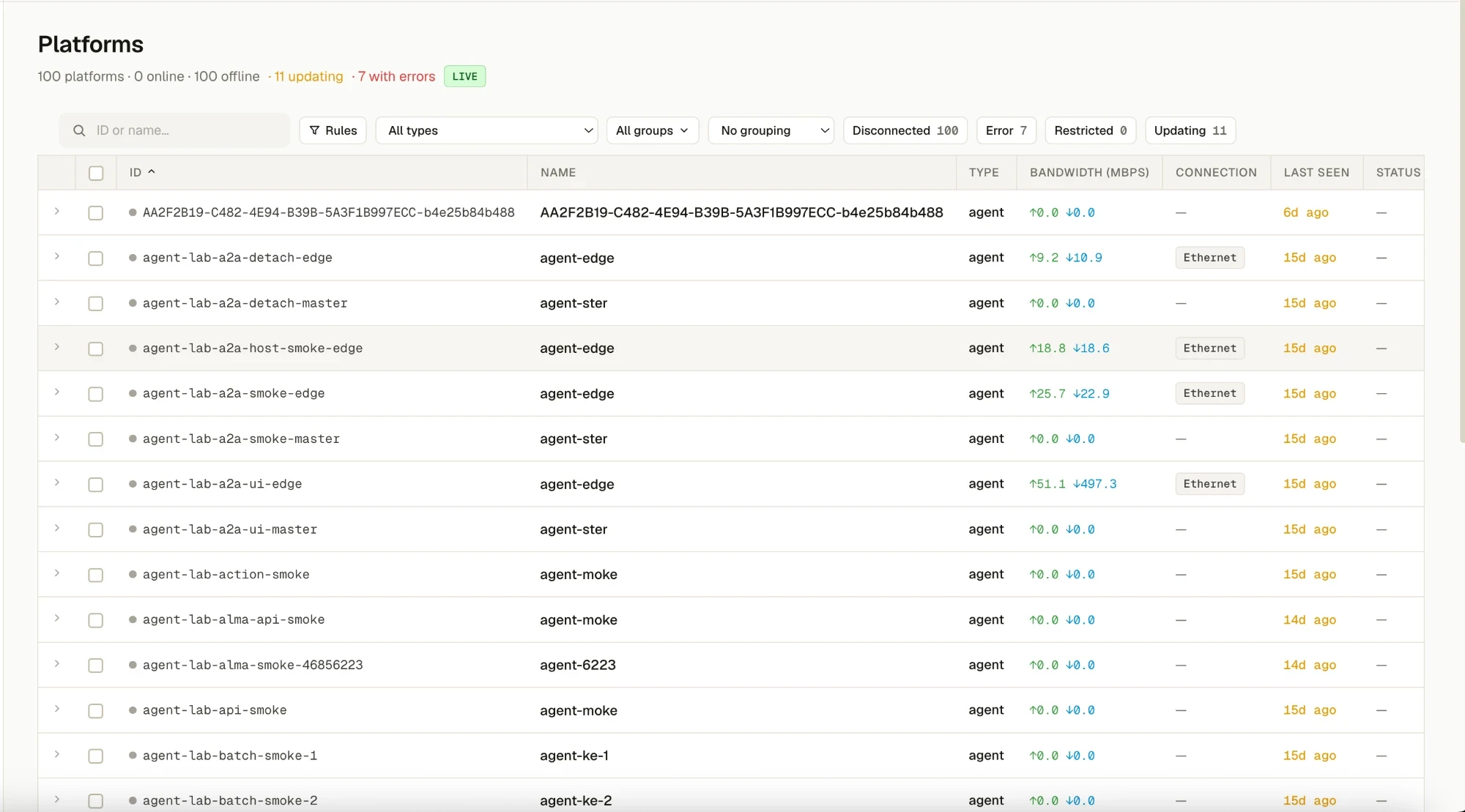
What you see
- Header count: total platforms, how many online vs. offline, and a LIVE badge once the first poll succeeds
- One row per platform (carried by its master device — child devices aren't separate top-level rows)
- Columns: status dot + ID, Name, Type, Bandwidth (↑upload / ↓download), Connection, Last Seen (amber when offline), Status chips
- A toolbar above the table and a live-refresh footer below it
What you can do
- Search by ID or name as you type
- Rules — open the rule-engine advanced search, or a simple metadata key/value match
- All types / All groups — filter to one type, or any combination of groups
- No grouping ⌄ — switch to sectioned mode, grouped by group or by type instead of a flat list
- Click Disconnected / Error / Restricted / Updating to toggle a status filter (they combine with OR); a Clear N button appears once any filter is active
- Click a row (anywhere except the items below) to open the platform's detail drawer
Expanding a row
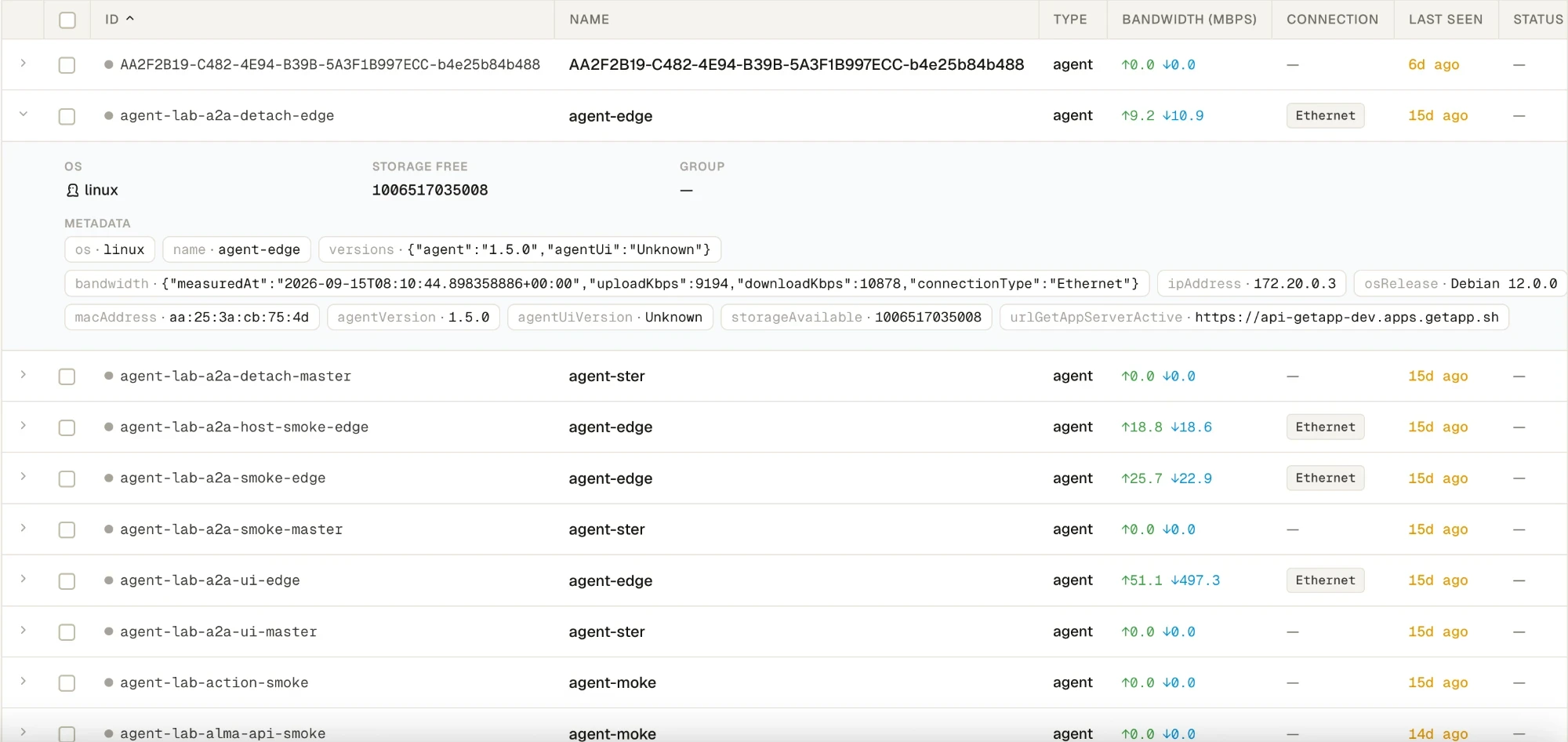
What you see
- Click the chevron (▸ → ⌄) to expand a row without leaving the table
- OS, Storage free, Group, and Metadata (every custom key/value the agent reported, as chips)
- A Devices panel — only shown when the platform has more than one member device; each is individually clickable
What you can do
- Click a listed device to open its single-device drawer (separate from the platform-level drawer)
- Click the chevron again, or click elsewhere, to collapse it
Row actions

What you see
The ⋯ menu at the end of each row.
What you can do
| Action | What it does |
|---|---|
| Journal | Opens the Platform Journal for this platform |
| Edit config | Opens the config editor for this platform/device |
| Delete | Removes the device, after a confirmation dialog |
Status chips and the detail panel
What you see
The Status column shows up to three chips — Updating, Error, Restricted — for
whichever conditions currently apply (— when none do). In the screenshots above both
platforms show — because nothing is currently updating, erroring, or restricted.
What you can do
Click the Status cell to expand an inline panel with one tab per active condition:
- Updating — each in-progress artifact with a progress bar and state (
Downloading/Installing/Queued/Ready) - Error — each failed artifact, its version, and the server-reported error message
- Restriction — the active restrictions blocking this platform, including the blocking rule's raw definition
The panel updates live — an SSE stream pushes progress/error events into it immediately, ahead of the next scheduled poll.
Bulk actions
What you can do
Select one or more rows via their checkboxes (or the header checkbox for all currently filtered rows) to reveal a bulk action bar — bulk Delete, with a running count of what's selected and a way to clear the selection without acting.
Live updates
What you see
The table polls every 30 seconds — a countdown shows in the footer ("Auto-refresh in 18s"). Status, in-progress updates, and errors also push in instantly via SSE between polls, so nothing waits for the next 30-second cycle.
See also
- Platform Information — what's in the platform detail drawer
- Configuration — per-platform/device config editing
- Platform Journal
- Restrictions