Create a Release
Compose a release step by step: its artifacts, its dependencies, and who it's delivered to — reviewed and published at the end.
Permission level: Developer portal access to compose a release; publish-release to
actually publish it; upload-artifact to add or change artifacts.
Where it lives
Project Detail → Releases → new release. Or Duplicate an existing release to start from — see below.
Duplicating from another release
Every existing release has a Duplicate button. It opens this same wizard, pre-filled from that release's artifacts and settings — nothing is written until you give it a new version number in Step 1. It's the fastest way to publish a near-identical follow-up release.
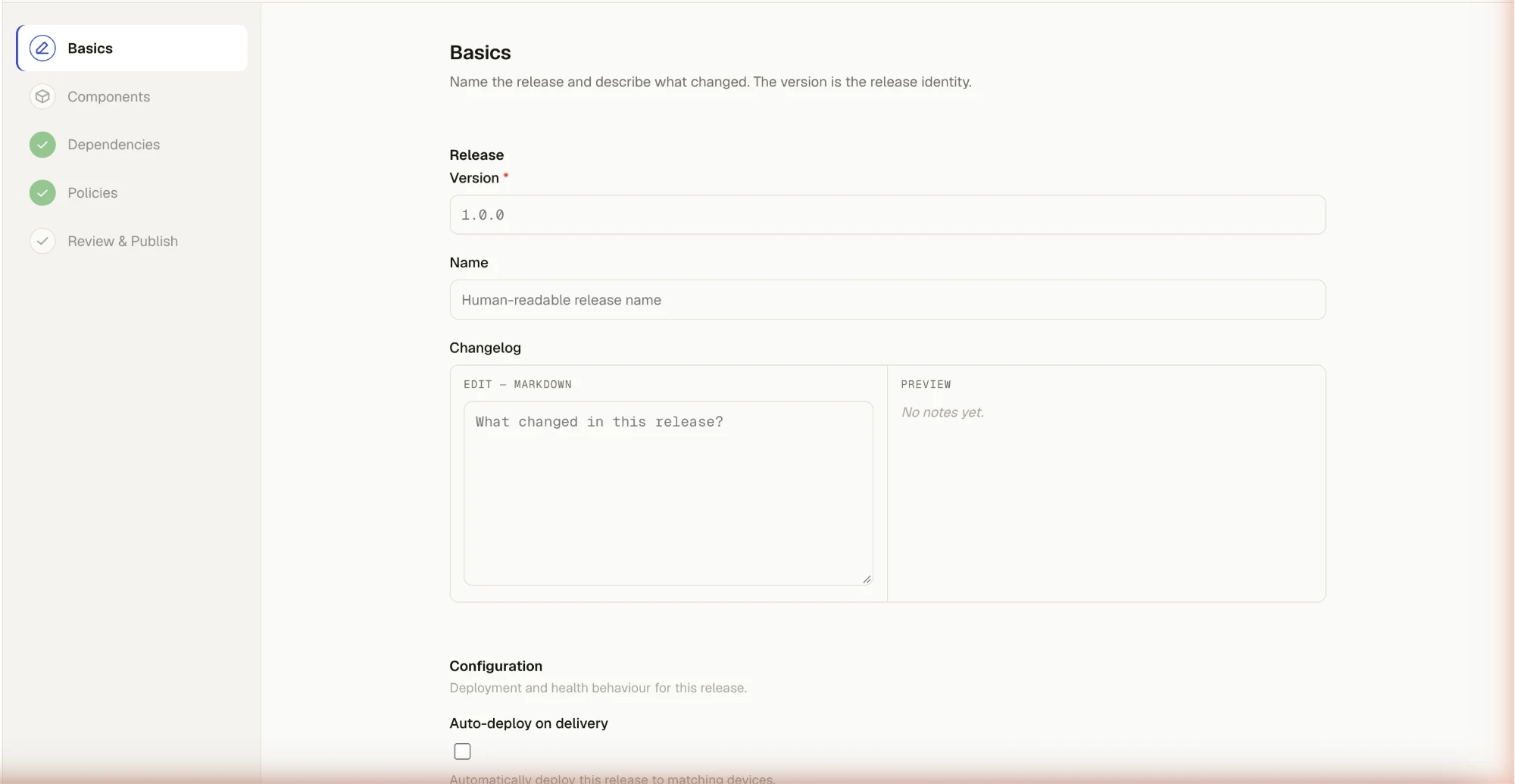
Step 1 — Basics
Version and name. The draft release is created here before anything else can attach to it.
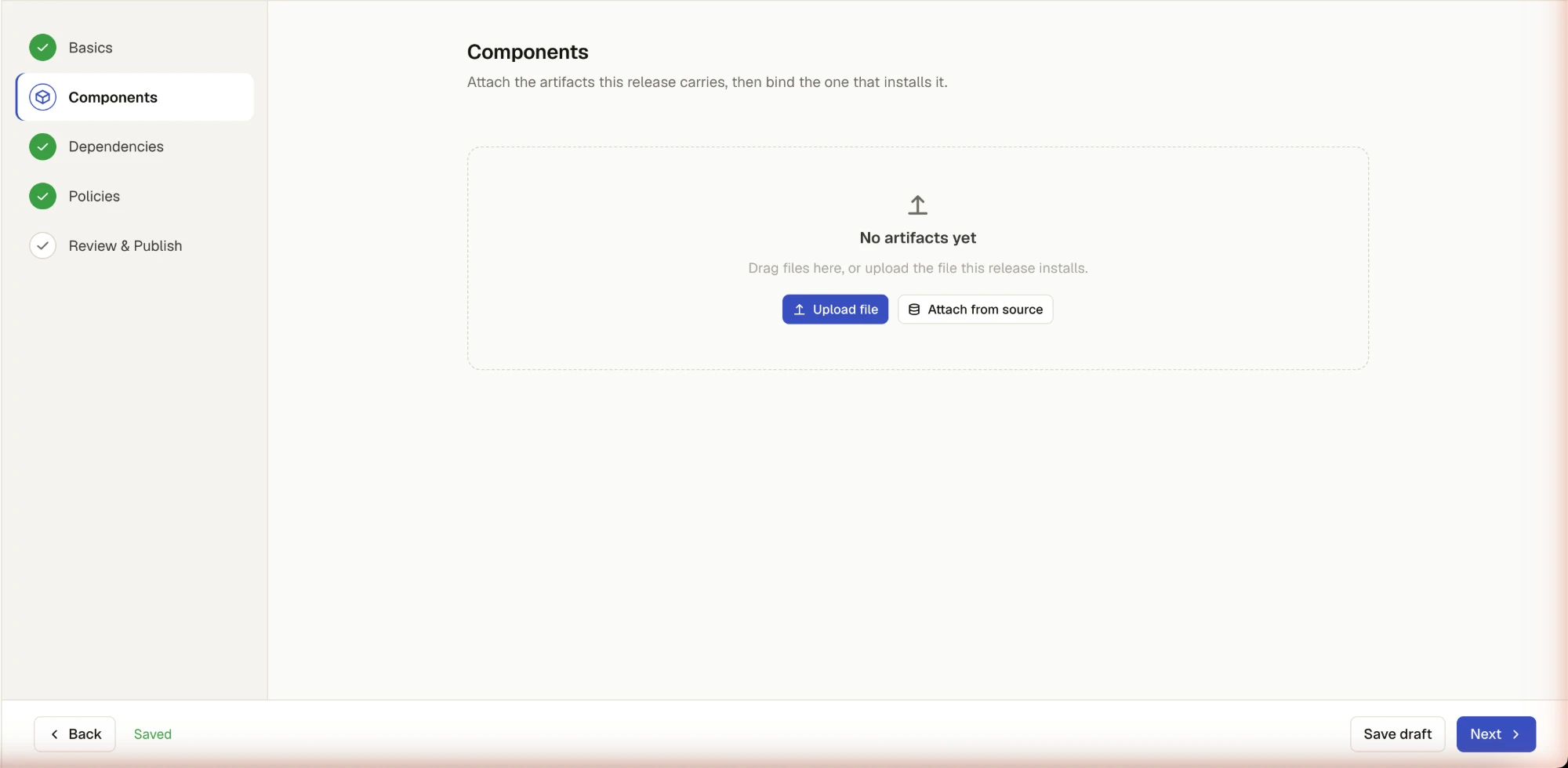
Step 2 — Components
Upload artifact files directly, or attach one from an existing source instead. Flag exactly one artifact as install — assigning it to a new artifact automatically un-flags the previous one. Publish is blocked while any install-bound artifact is still uploading.
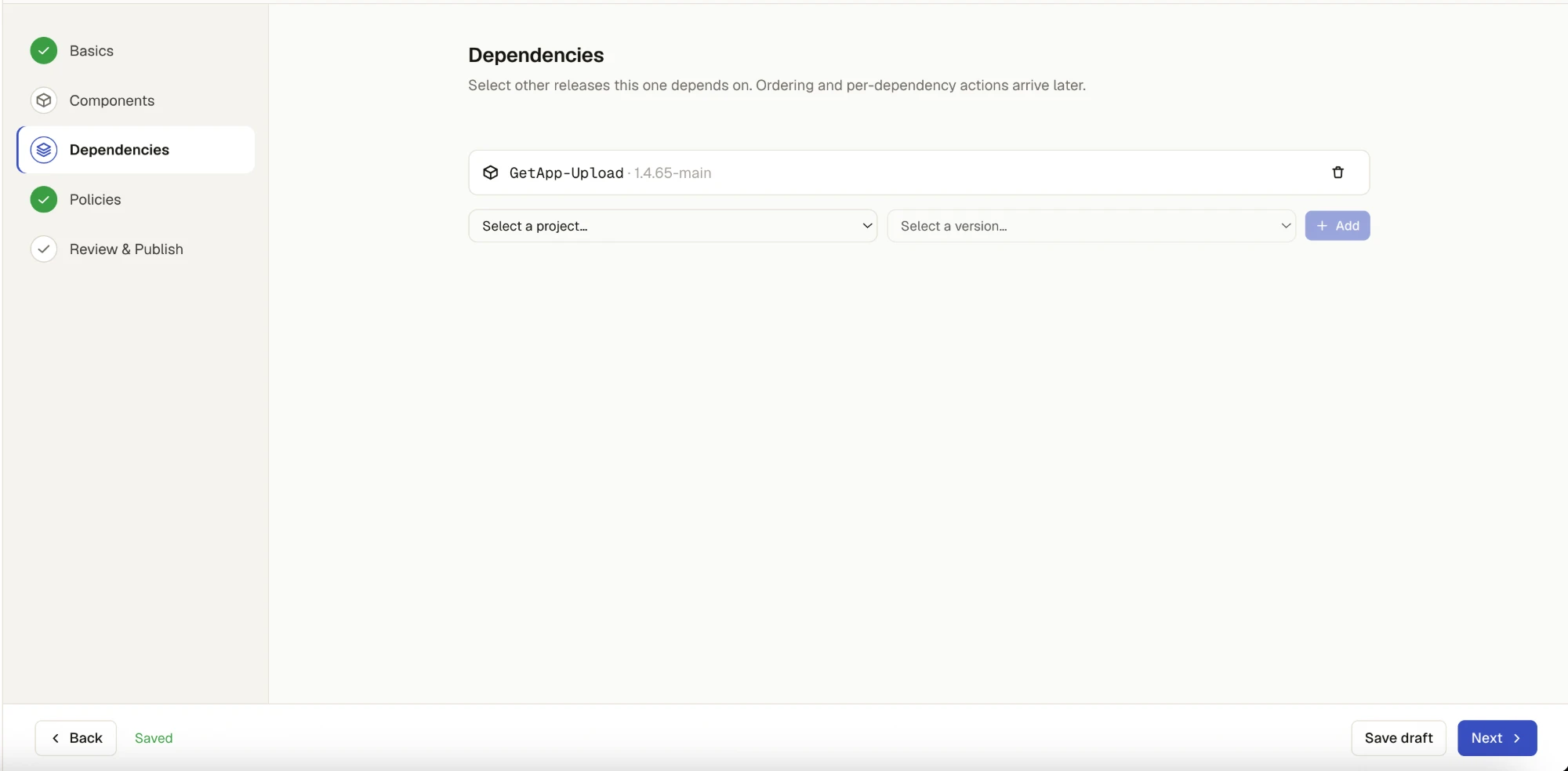
Step 3 — Dependencies
Add other releases (any project, any version) this one depends on — an unordered list in the current release stage. Removing a dependency here doesn't affect the dependency's own release.
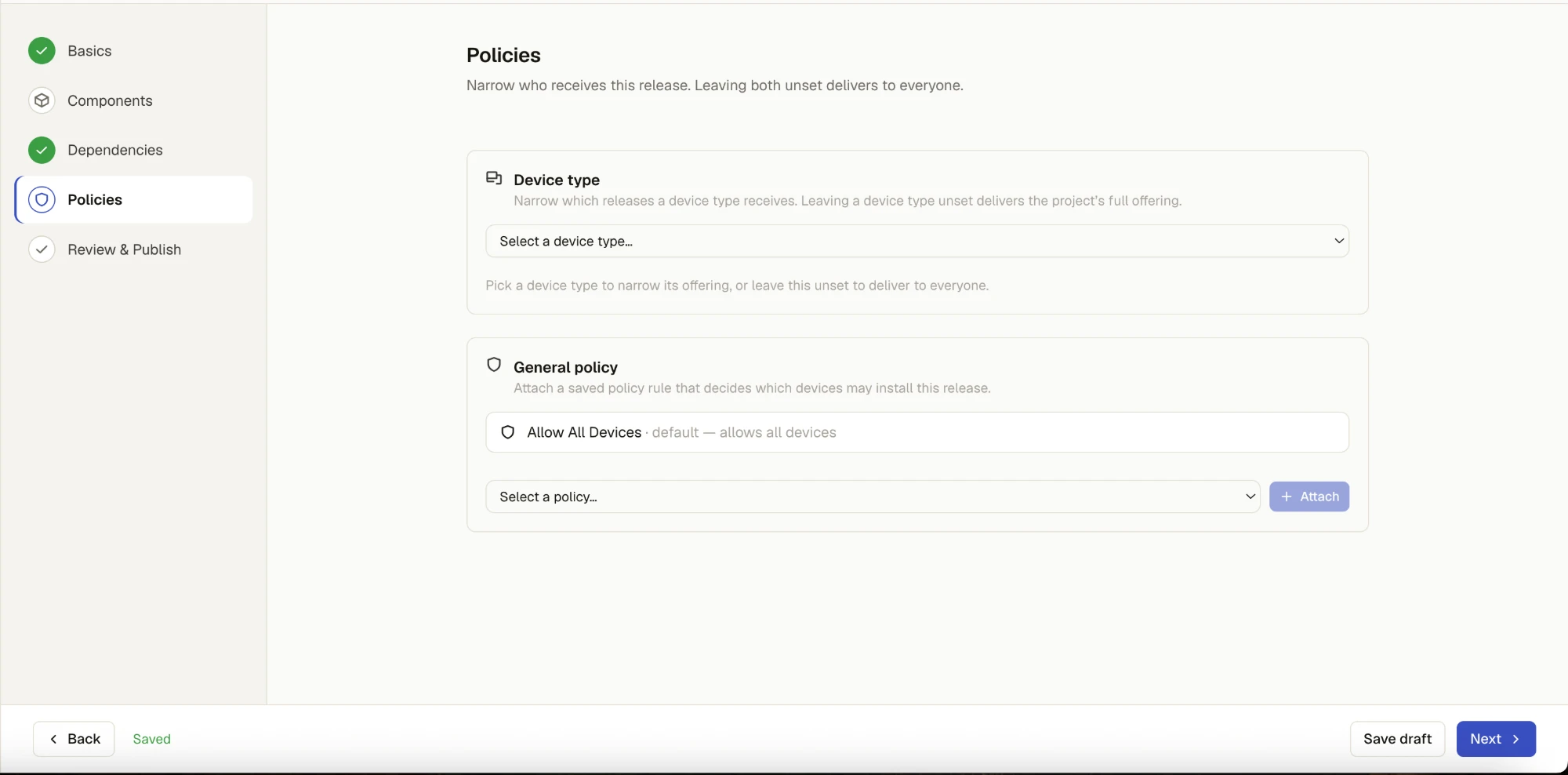
Step 4 — Policies
Two independent, role-gated ways to narrow who this release reaches — leaving both unset delivers it to everyone:
- Device type offering — the same offering policy editor used from Types, scoped to this release
- Release policy — associates a Policy rule with this specific release
Active restrictions are shown here read-only — they still block matching devices regardless of what you set in this step.
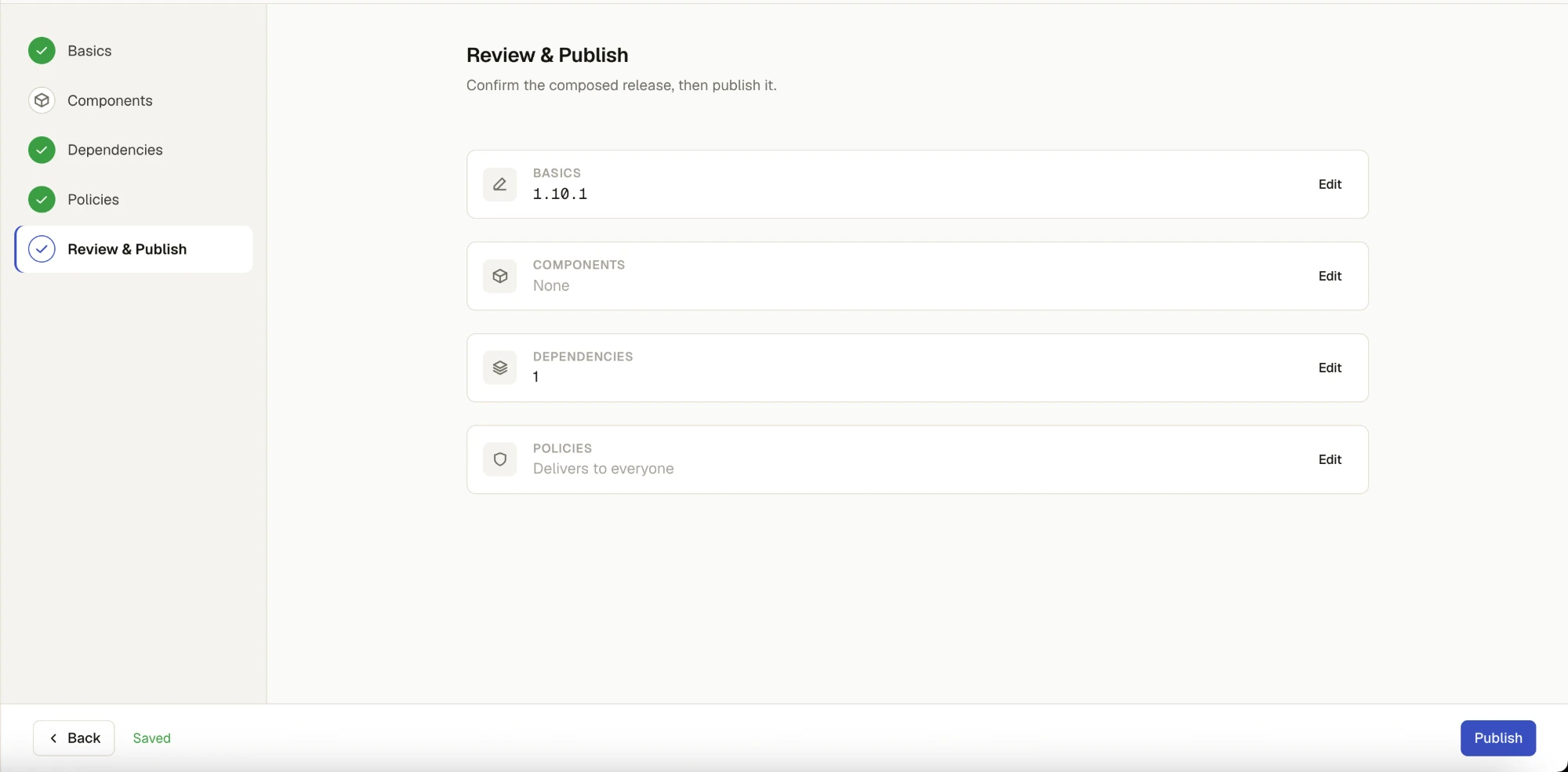
Step 5 — Review & Publish
A read-only summary of every step, each with a quick Edit link back to it. Publish
(gated on publish-release) flips the release's status to released.
SBOM
Releases carry a Software Bill of Materials scan (status shows on
Project Detail's Events tab as sbom_started / sbom_ready /
sbom_failed), gated by dedicated create-sbom-scan / view-sbom-scan / retry-sbom-scan
permissions. There's no dashboard control to start or retry a scan yet — that's API/CI-only
today; the dashboard only surfaces its status once it runs.