Evaluating Rules
Before you activate a policy or restriction, you can test it against your registered devices to see exactly which devices it would match. This helps you catch mistakes early and build confidence that your rule works as intended.
What Is Rule Evaluation?
Rule evaluation is a live test that runs your rule against all devices currently registered in GetApp. The system checks each device's latest reported data and tells you:
- How many devices match the rule (Matching Devices)
- How many devices were checked in total (Total Evaluated)
- Which specific devices matched, with details about each one
No changes are made to your devices or to the rule itself — evaluation is always read-only.
How to Evaluate a Rule
There are two ways to trigger a rule evaluation:
Option 1: From the Rules List (Saved Rules)
If a rule has already been saved, you can evaluate it directly from the Rules list without opening the editor.
- Navigate to Rules in the main menu
- Find the rule you want to test
- Click the Play button (▶) in the Actions column
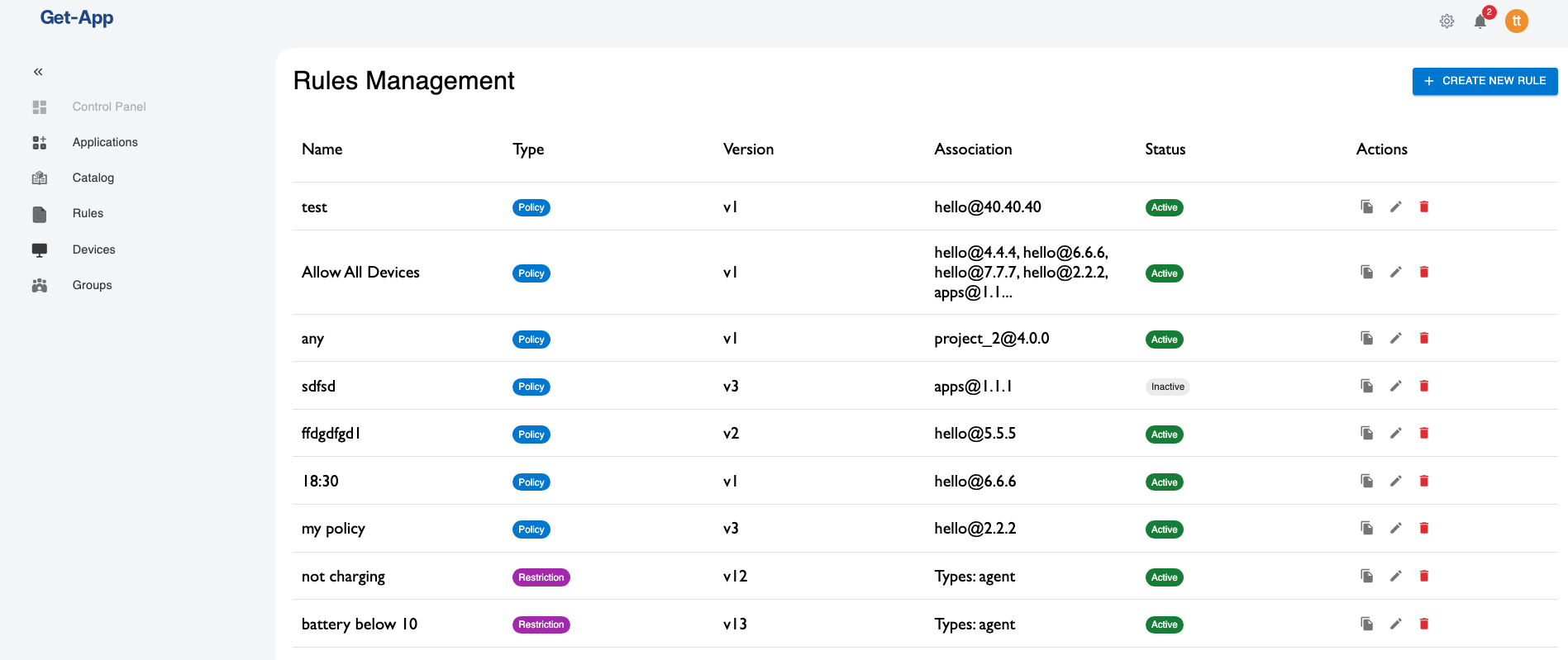
The Rule Evaluation Results dialog opens immediately.
Option 2: From the Rule Creation / Editing Wizard
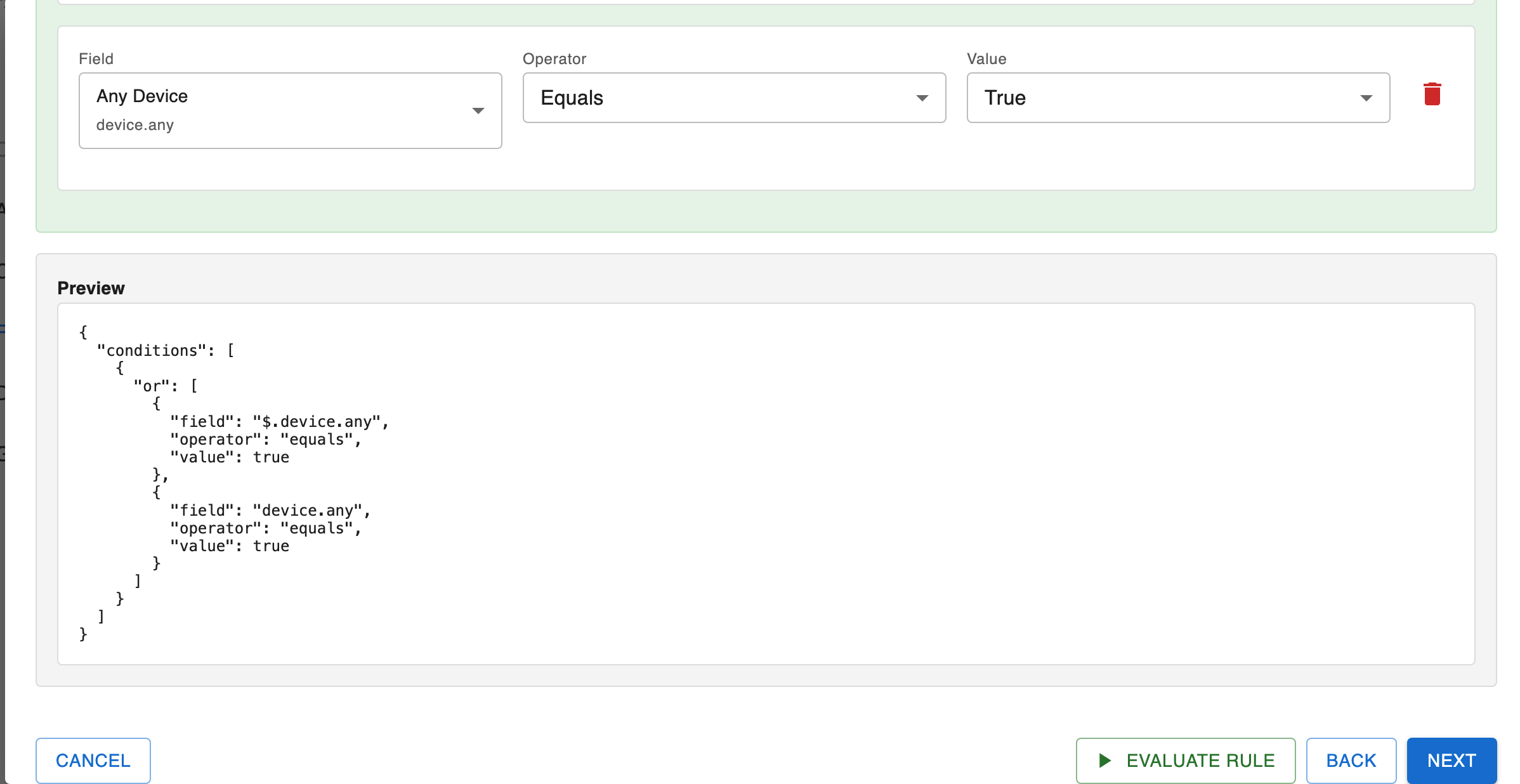
You can also evaluate a rule at any point while creating or editing it — without saving first.
- Open the rule creation wizard (+ Create New Rule) or click the Edit button (pencil icon) on an existing rule
- Proceed to Step 2 — the rule builder step
- Define your conditions in the rule builder
The Preview panel shows the JSON representation of your rule in real time, so you can verify the rule structure before evaluating.
- Click the Evaluate Rule button at the bottom of the page
Reviewing the Results
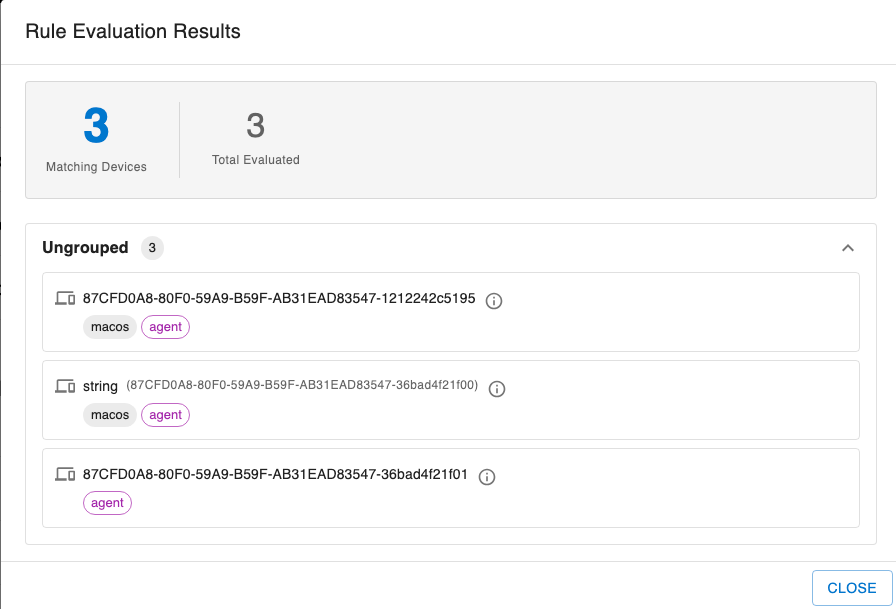
In both cases, a Rule Evaluation Results dialog opens. It displays:
- A summary card with the Matching Devices count (highlighted in blue) and the Total Evaluated count
- A list of all matching devices, grouped by device group (or shown under Ungrouped if not assigned to a group)
Each device entry shows:
- Device name or ID
- OS tag (e.g.,
macos,windows,linux) - Type tag (e.g.,
agent)
Inspecting a Device's Data
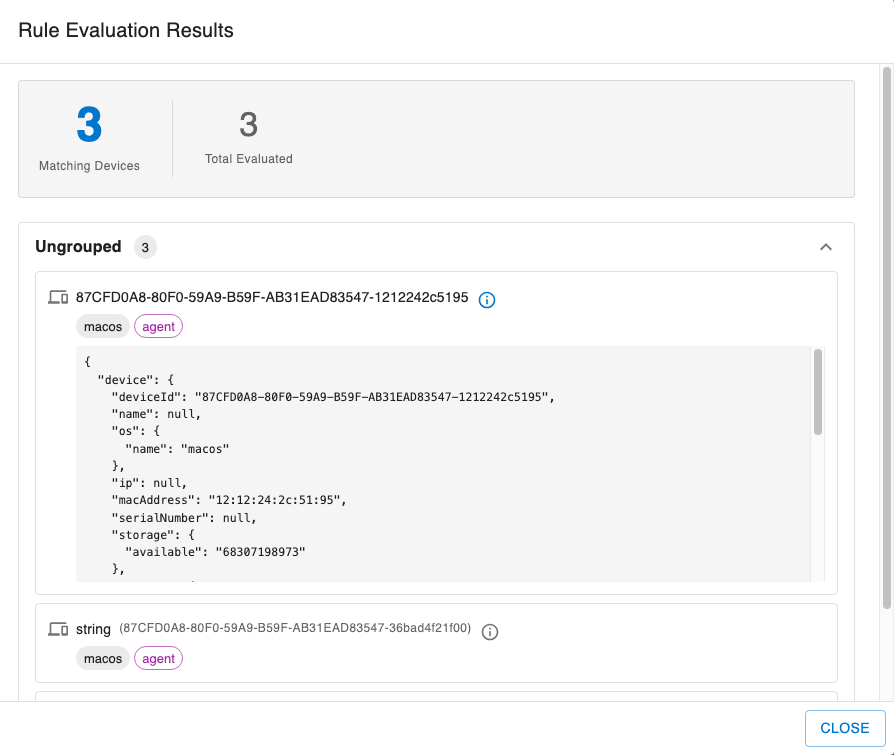
Sometimes a match (or a non-match) is unexpected. To understand why the rule engine made a decision for a specific device, you can inspect the raw data that was used.
Click the info icon (ⓘ) next to any device in the results list. A JSON panel expands below the device showing the full context the rule engine evaluated — including fields like deviceId, os, macAddress, storage, and any additional properties reported by the agent.
This is useful for:
- Verifying that a field you referenced in your rule actually has data
- Checking the exact value of a field on a specific device
- Debugging why a device matched or did not match
Understanding the Results
| Indicator | Meaning |
|---|---|
| Matching Devices (blue number) | Devices whose current data satisfies the rule conditions |
| Total Evaluated | All devices that were checked (regardless of match) |
| Ungrouped | Devices that are not assigned to any group |
If Matching Devices = 0, either no devices currently meet the conditions or the rule contains fields that have no data yet on any device.
If Matching Devices = Total Evaluated, the rule matches every device — double-check that this is intentional (for example, a rule like "Any Device = True" is designed to match all devices).
Tips
- Evaluate saved rules quickly — use the Play button on the Rules list to evaluate without opening the editor.
- Evaluate before saving — in the wizard, you can evaluate at any stage of rule creation, even before associating the rule with a release or device.
- Check the device context — if a device matches unexpectedly, expand the info panel to see the exact field values used during evaluation.
- Iterate quickly — adjust a condition in the rule builder and click Evaluate Rule again to immediately see the impact.