Rule Fields and Expressions
This guide provides a comprehensive reference for building rule expressions used in both policies and restrictions.
Overview
Rules are built using fields, operators, and values. The rule engine evaluates these expressions to determine whether a policy or restriction matches.
Basic Structure:
field operator value
Example:
$.device.type equals "agent"
Available Rule Fields
Rule fields represent properties of devices, software, and other system entities. Fields are dynamically registered by devices during discovery and stored in the system's rule field registry.
How Rule Fields Work
Field Registration:
- Devices report their available fields during discovery using the
supportedFieldsproperty - Each field includes a name, type, optional label, and optional description
- The server automatically registers new fields in the
rule_fieldsdatabase table - Once registered, fields become available for use in policy and restriction rules
Field Types: The system supports the following field data types:
string: Text values (e.g., "Linux", "production", "device-123")number: Numeric values (e.g., 16384, 4.5, 100)boolean: True/false values (e.g., true, false)object: Complex nested objects (advanced use)array: Arrays of values (advanced use)
Field Naming:
- Fields can use JSONPath format (e.g.,
$.battery.levelfor nested properties) - Simple field names (e.g.,
deviceId,osType) are also supported - Field names are case-sensitive
Standard Device Fields
These are commonly reported fields that most devices provide:
Device Information Fields
These fields describe the device itself:
| Field Name | Type | Description | Example Values |
|---|---|---|---|
$.os.name | string | Operating system name | "windows", "macos" |
$.os.version | string | Operating system version | "10.0", "11.0" |
$.location.latitude | number | Device location latitude | 40.741895 |
$.location.longitude | number | Device location longitude | -73.989308 |
$.device.type | string | Type of device | "agent", "agent_linux" |
$.battery.isCharging | boolean | Indicates whether the device battery is currently charging | true, false |
$.battery.level | number | Current battery level as a percentage (0-100) | 80.0 |
$.device.any | boolean | When set to true, policy evaluation will pass regardless of other conditions. Use this to display components without special checks. | true, false |
Viewing Available Fields
To see all available fields in your system:
- Navigate to Policies or Restrictions in the Dashboard
- Click Create or Edit
- In the rule builder, click the Field dropdown
- All available fields are listed with descriptions
- Or navigate to Settings → Rule Fields (if available)
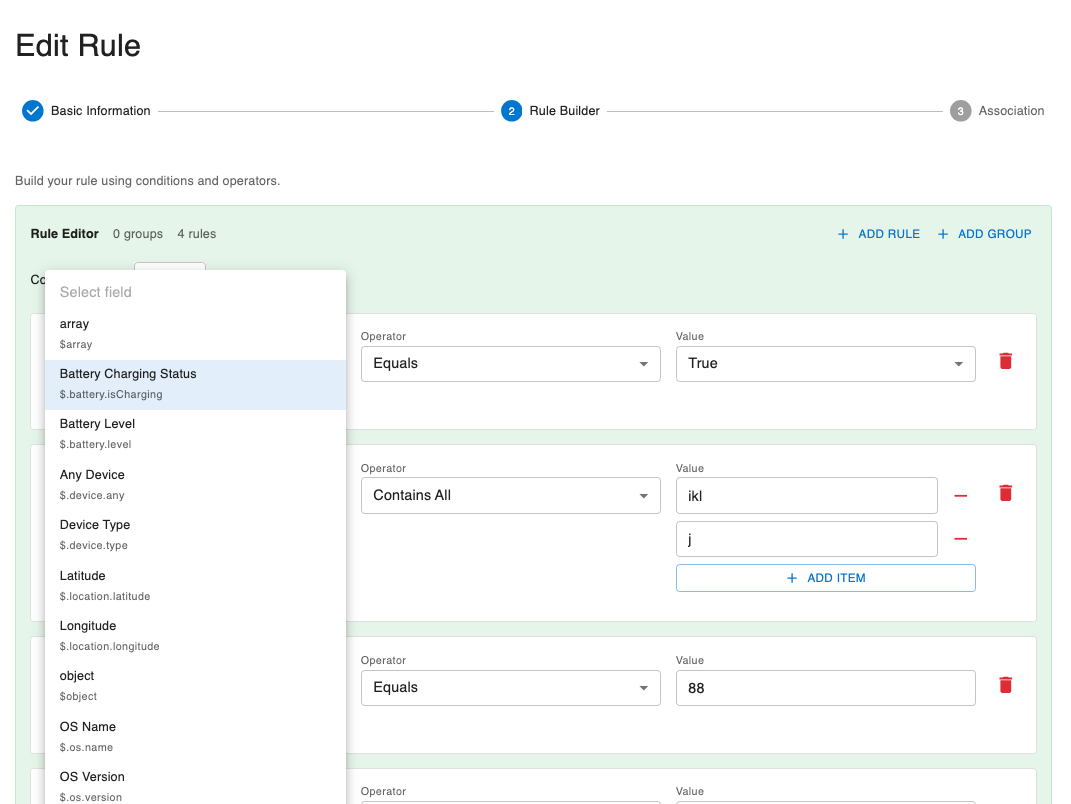
Adding New Fields
Automatic Addition:
Fields are automatically added when devices report them during discovery. The agent includes the supportedFields array in the discovery message with all fields it can provide.
Manual Addition: Administrators can also manually add fields through the API:
API Endpoint: POST /api/v1/upload/policies/fields
Request Body:
{
  "name": "customField",
  "type": "string",
  "label": "Custom Field",
  "description": "A custom field for special use cases"
}
Field Properties:
name(required): Field identifier (e.g., "region", "$.battery.level")type(required): Data type (string, number, boolean, object, array)label(optional): Human-readable display namedescription(optional): Detailed explanation of the field's purpose
Removing Fields
API Endpoint: DELETE /api/v1/upload/policies/fields/{name}
Note: Removing a field does not delete it from existing rules, but it prevents it from being used in new rules.
Field Validation
When creating or updating rules:
- The system validates that all referenced fields exist in the registry
- Fields not in the registry will cause rule validation to fail
- This ensures rules only reference fields that devices can actually provide
Field Usage in Rules
Field Reference Format:
{
  "field": "fieldName",
  "operator": "equals",
  "value": "expectedValue"
}
Examples:
Simple field:
{
  "field": "$.os.name",
  "operator": "equals",
  "value": "windows"
}
Numeric field:
{
  "field": "$.battery.level",
  "operator": "greater-than-or-equals",
  "value": 50
}
Boolean field:
{
  "field": "$.battery.isCharging",
  "operator": "equals",
  "value": "true"
}
JSONPath field (nested):
{
  "field": "$.battery.level",
  "operator": "greater-than",
  "value": 20
}
Operators
Operators define how field values are compared. Different operators work with different data types.
Comparison Operators
Used for comparing values:
Equals (equals)
Checks if field exactly matches the value.
Syntax: field equals value
Examples:
{ "field": "$.device.type", "operator": "equals", "value": "agent" }
{ "field": "$.os.name", "operator": "equals", "value": "windows" }
{ "field": "$.battery.isCharging", "operator": "equals", "value": "true" }
Use Cases:
- Match specific device types
- Target specific OS types
- Filter by environment
Not Equals (not-equals)
Checks if field does NOT match the value.
Syntax: field not-equals value
Examples:
{ "field": "$.os.name", "operator": "not-equals", "value": "macos" }
{ "field": "$.device.type", "operator": "not-equals", "value": "agent_linux" }
Use Cases:
- Exclude specific values
- Block all except certain types
- Negative filtering
Greater Than (greater-than)
Checks if field is greater than the value (numeric comparison).
Syntax: field greater-than value
Examples:
{ "field": "$.battery.level", "operator": "greater-than", "value": 50 }
{ "field": "$.location.latitude", "operator": "greater-than", "value": 40.0 }
Use Cases:
- Minimum hardware requirements
- Resource-based filtering
- Version comparison (for sortable version strings)
Less Than (less-than)
Checks if field is less than the value (numeric comparison).
Syntax: field less-than value
Examples:
{ "field": "$.battery.level", "operator": "less-than", "value": 20 }
{ "field": "$.location.longitude", "operator": "less-than", "value": -70.0 }
Use Cases:
- Maximum limits
- Blocking on low-resource devices
- Legacy version blocking
Greater Than or Equal (greater-than-or-equals)
Checks if field is greater than or equal to the value.
Syntax: field greater-than-or-equals value
Examples:
{ "field": "$.battery.level", "operator": "greater-than-or-equals", "value": 80 }
{ "field": "$.os.version", "operator": "greater-than-or-equals", "value": "11.0" }
Use Cases:
- Minimum requirements (inclusive)
- Version requirements
Less Than or Equal (less-than-or-equals)
Checks if field is less than or equal to the value.
Syntax: field less-than-or-equals value
Examples:
{ "field": "$.battery.level", "operator": "less-than-or-equals", "value": 30 }
{ "field": "$.location.latitude", "operator": "less-than-or-equals", "value": 45.0 }
Use Cases:
- Maximum limits (inclusive)
- Resource constraints
String Operators
Used for string pattern matching:
Contains (contains)
Checks if field contains the substring.
Syntax: field contains value
Examples:
{ "field": "$.os.name", "operator": "contains", "value": "win" }
{ "field": "$.os.version", "operator": "contains", "value": "11" }
{ "field": "$.device.type", "operator": "contains", "value": "agent" }
Use Cases:
- Partial string matching
- Finding devices with naming patterns
- Version suffix matching (beta, alpha, dev)
Starts With (starts-with)
Checks if field starts with the substring.
Syntax: field starts-with value
Examples:
{ "field": "$.os.name", "operator": "starts-with", "value": "mac" }
{ "field": "$.device.type", "operator": "starts-with", "value": "agent" }
{ "field": "$.os.version", "operator": "starts-with", "value": "10" }
Use Cases:
- Namespace filtering
- Naming convention matching
- Version major version filtering
Ends With (ends-with)
Checks if field ends with the substring.
Syntax: field ends-with value
Examples:
{ "field": "$.os.name", "operator": "ends-with", "value": "os" }
{ "field": "$.device.type", "operator": "ends-with", "value": "_linux" }
{ "field": "$.os.version", "operator": "ends-with", "value": ".0" }
Use Cases:
- Domain matching
- Version suffix matching
- Naming convention filtering
Matches (matches)
Checks if field matches a regular expression pattern.
Syntax: field matches pattern
Examples:
{ "field": "$.os.version", "operator": "matches", "value": "^[0-9]+\\.[0-9]+$" }
{ "field": "$.device.type", "operator": "matches", "value": "^agent(_linux)?$" }
{ "field": "$.os.name", "operator": "matches", "value": "^(windows|macos)$" }
Use Cases:
- Complex pattern matching
- Version format validation
- Advanced string filtering
Note: Regex patterns use standard regular expression syntax. Remember to escape special characters.
Collection Operators
Used for checking membership in lists:
In (in)
Checks if field value is in the provided list.
Syntax: field in [value1, value2, ...]
Examples:
{ "field": "$.os.name", "operator": "in", "value": ["windows", "macos"] }
{ "field": "$.device.type", "operator": "in", "value": ["agent", "agent_linux"] }
Use Cases:
- Multiple value matching
- List-based filtering
- Alternative to multiple OR conditions
Not In (not-in)
Checks if field value is NOT in the provided list.
Syntax: field not-in [value1, value2, ...]
Examples:
{ "field": "$.os.name", "operator": "not-in", "value": ["linux", "unix"] }
{ "field": "$.device.type", "operator": "not-in", "value": ["agent_legacy", "agent_deprecated"] }
Use Cases:
- Exclusion lists
- Blacklisting
- Multiple value negation
Existence Operators
Used for checking if fields exist or have values:
Exists (exists)
Checks if the field exists and has a non-null value.
Syntax: field exists
Examples:
{ "field": "$.battery.level", "operator": "exists" }
{ "field": "$.location.latitude", "operator": "exists" }
Use Cases:
- Check if custom field is set
- Require specific properties
- Validate field presence
Not Exists (not-exists)
Checks if the field does not exist or has a null value.
Syntax: field not-exists
Examples:
{ "field": "$.battery.isCharging", "operator": "not-exists" }
{ "field": "$.location.longitude", "operator": "not-exists" }
Use Cases:
- Exclude devices with certain flags
- Check for missing properties
- Validate field absence
Logical Operators
Used for combining multiple conditions:
AND (and)
All conditions must be true.
Syntax:
{
  "and": [
    { "field": "field1", "operator": "equals", "value": "value1" },
    { "field": "field2", "operator": "equals", "value": "value2" }
  ]
}
Examples:
{
  "and": [
    { "field": "$.device.type", "operator": "equals", "value": "agent" },
    { "field": "$.os.name", "operator": "equals", "value": "windows" }
  ]
}
Use Cases:
- Combining multiple requirements
- All criteria must match
- Intersection of conditions
OR (or)
At least one condition must be true.
Syntax:
{
  "or": [
    { "field": "field1", "operator": "equals", "value": "value1" },
    { "field": "field2", "operator": "equals", "value": "value2" }
  ]
}
Examples:
{
  "or": [
    { "field": "$.os.name", "operator": "equals", "value": "windows" },
    { "field": "$.os.name", "operator": "equals", "value": "macos" }
  ]
}
Use Cases:
- Alternative conditions
- Any criteria matches
- Union of conditions
NOT (none)
Negates a condition or group of conditions.
Syntax:
{
  "none": [
    { "field": "field1", "operator": "equals", "value": "value1" }
  ]
}
Examples:
{
  "none": [
    { "field": "$.battery.isCharging", "operator": "equals", "value": "false" }
  ]
}
Use Cases:
- Inversion of logic
- Negating complex conditions
- Exclusion logic
Building Complex Rules
Simple Rule Example
Match Windows devices:
{
  "field": "$.os.name",
  "operator": "equals",
  "value": "windows"
}
AND Rule Example
Match Windows devices with battery level above 50%:
{
  "and": [
    {
      "field": "$.os.name",
      "operator": "equals",
      "value": "windows"
    },
    {
      "field": "$.battery.level",
      "operator": "greater-than-or-equals",
      "value": 50
    }
  ]
}
OR Rule Example
Match devices running Windows or macOS:
{
  "or": [
    {
      "field": "$.os.name",
      "operator": "equals",
      "value": "windows"
    },
    {
      "field": "$.os.name",
      "operator": "equals",
      "value": "macos"
    }
  ]
}
Nested Rule Example
Match agent devices running Windows or macOS:
{
  "and": [
    {
      "field": "$.device.type",
      "operator": "equals",
      "value": "agent"
    },
    {
      "or": [
        {
          "field": "$.os.name",
          "operator": "equals",
          "value": "windows"
        },
        {
          "field": "$.os.name",
          "operator": "equals",
          "value": "macos"
        }
      ]
    }
  ]
}
Complex Nested Example
Match devices meeting multiple criteria:
{
  "and": [
    {
      "or": [
        {
          "field": "$.device.type",
          "operator": "equals",
          "value": "agent"
        },
        {
          "field": "$.device.type",
          "operator": "equals",
          "value": "agent_linux"
        }
      ]
    },
    {
      "and": [
        {
          "field": "$.battery.level",
          "operator": "greater-than-or-equals",
          "value": 30
        },
        {
          "field": "$.os.version",
          "operator": "greater-than-or-equals",
          "value": "10.0"
        }
      ]
    },
    {
      "none": [
        {
          "field": "$.battery.isCharging",
          "operator": "equals",
          "value": "false"
        }
      ]
    }
  ]
}
This matches:
- (agent OR agent_linux) AND
- (battery level >= 30 AND OS version >= 10.0) AND
- (battery IS charging)
Common Rule Patterns
Pattern 1: Device Type Filtering
Target specific device types:
{
  "field": "$.device.type",
  "operator": "in",
  "value": ["agent", "agent_linux"]
}
Pattern 2: OS and Battery-Based
Different rules for different operating systems with battery requirements:
{
  "and": [
    { "field": "$.os.name", "operator": "equals", "value": "windows" },
    { "field": "$.battery.level", "operator": "greater-than-or-equals", "value": 50 }
  ]
}
Pattern 3: Version Range
Allow OS versions within a range:
{
  "and": [
    { "field": "$.os.version", "operator": "greater-than-or-equals", "value": "10.0" },
    { "field": "$.os.version", "operator": "less-than", "value": "12.0" }
  ]
}
Pattern 4: Exclusion List
Block specific device types:
{
  "field": "$.device.type",
  "operator": "not-in",
  "value": ["agent_legacy", "agent_deprecated", "agent_test"]
}
Pattern 5: Battery Requirements
Require minimum battery level and charging:
{
  "and": [
    { "field": "$.battery.level", "operator": "greater-than-or-equals", "value": 50 },
    { "field": "$.battery.isCharging", "operator": "equals", "value": "true" }
  ]
}
Pattern 6: Location-Based Restrictions
Limit devices based on location:
{
  "and": [
    {
      "field": "$.location.latitude",
      "operator": "greater-than",
      "value": 40.0
    },
    {
      "field": "$.location.longitude",
      "operator": "less-than",
      "value": -70.0
    }
  ]
}
Pattern 7: Display Without Checks
Display components without special conditions:
{
  "field": "$.device.any",
  "operator": "equals",
  "value": "true"
}
Pattern 8: OS-Specific
Different rules for different operating systems:
{
  "and": [
    { "field": "$.os.name", "operator": "equals", "value": "windows" },
    { "field": "$.os.version", "operator": "greater-than-or-equals", "value": "10.0" }
  ]
}
Pattern 9: Legacy OS Version Blocking
Block old OS versions:
{
  "and": [
    { "field": "$.os.name", "operator": "equals", "value": "windows" },
    { "field": "$.os.version", "operator": "less-than", "value": "10.0" }
  ]
}
Pattern 10: Charging Device Requirements
Require devices to be charging:
{
  "and": [
    { "field": "$.battery.isCharging", "operator": "equals", "value": "true" },
    { "field": "$.battery.level", "operator": "greater-than", "value": 20 }
  ]
}
Value Types and Formats
String Values
Enclosed in quotes:
"value": "StringValue"
Case-sensitive by default (depends on operator and field).
Numeric Values
Not enclosed in quotes:
"value": 12345
Used for memory, CPU cores, disk space, etc.
Boolean Values
Use string representation:
"value": "true"
or
"value": "false"
Array Values
For in and notIn operators:
"value": ["value1", "value2", "value3"]
Version Strings
Versions as strings:
"value": "1.2.3"
Comparison depends on whether semantic versioning is supported.
Testing Rule Expressions
Manual Testing
Test rules manually:
- Create policy/restriction as inactive
- Activate on test device
- Check evaluation results in logs
- Verify expected behavior
- Adjust rule if needed
Common Testing Scenarios
Test Device Properties:
- Set known device properties
- Create rule matching those properties
- Verify it evaluates correctly
Test Edge Cases:
- Empty strings
- Null values
- Missing fields
- Boundary values (0, negative numbers)
Test Complex Logic:
- Test each branch of OR conditions
- Verify AND conditions require all to match
- Test nested conditions thoroughly
Best Practices
Keep Rules Simple
- Prefer simple rules over complex nested rules when possible
- Break complex logic into multiple simpler policies/restrictions
- Use readable field and value names
Use Appropriate Operators
- Use
ininstead of multiple OR conditions for lists - Use
containsfor substring matching instead of regex when possible - Use
greater-than-or-equals/less-than-or-equalsfor inclusive ranges
Document Complex Rules
- Add clear descriptions explaining the rule's purpose
- Document why specific values are used
- Note any dependencies or related rules
Test Thoroughly
- Test rules before activating
- Verify all branches of complex conditions
- Test with real device data
- Monitor initial rollout
Optimize for Performance
- Put most selective conditions first in AND chains
- Avoid deeply nested conditions when possible
- Use indexed fields when available
Version Strings
- Use semantic versioning (1.2.3)
- Be consistent with version formats
- Document version comparison behavior
Custom Fields
- Use descriptive field names
- Document custom field meanings
- Set defaults for custom fields
- Validate field values
Troubleshooting Rules
Rule Not Matching
Check:
- Field names are spelled correctly
- Values match exactly (case-sensitive)
- Operator is appropriate for the data type
- Device actually has the field set
Rule Matching Unexpectedly
Check:
- Operator logic (equals vs not-equals)
- Nested conditions and logical operators
- String matching (contains vs equals)
- Case sensitivity
Performance Issues
Check:
- Overly complex nested rules
- Inefficient regex patterns
- Too many conditions
- Unindexed field queries
Syntax Errors
Check:
- JSON syntax validity
- Quotes around strings
- Comma placement
- Bracket matching
Next Steps
- Practice with Managing Policies
- Practice with Managing Restrictions