Downloading and Deploying
This section describes how to discover available applications, download them to the device, and complete deployment using the GetApp Agent dashboard.
Discovery
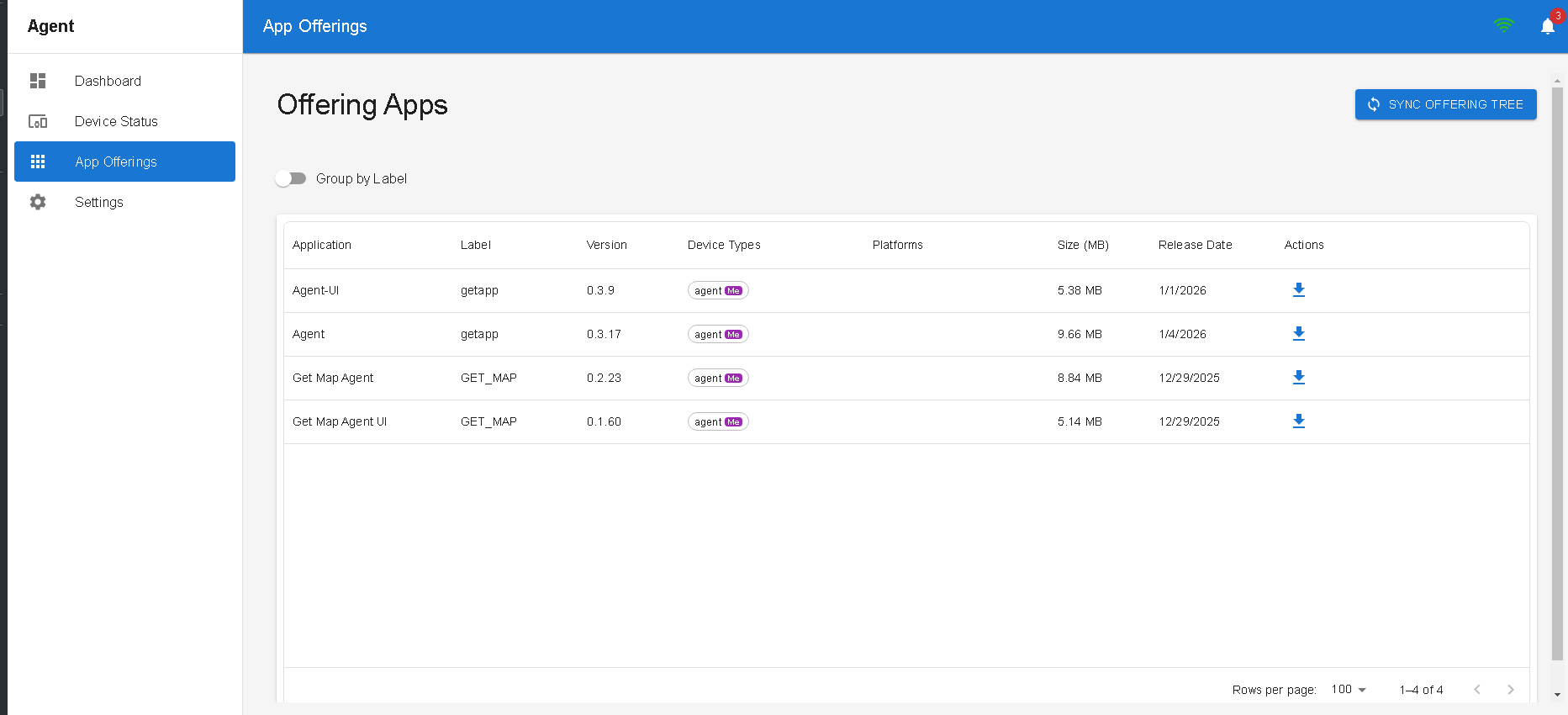
From the App Offering section in the left-hand menu of the dashboard, select the SYNC OFFERING TREE button.
This action refreshes the available offering list from the server and updates the view with the latest applications.
Downloading
After the offering tree is synced, the list of available applications appears in the App Offering view.
You can start a download directly from this view by selecting the relevant action for the desired application.
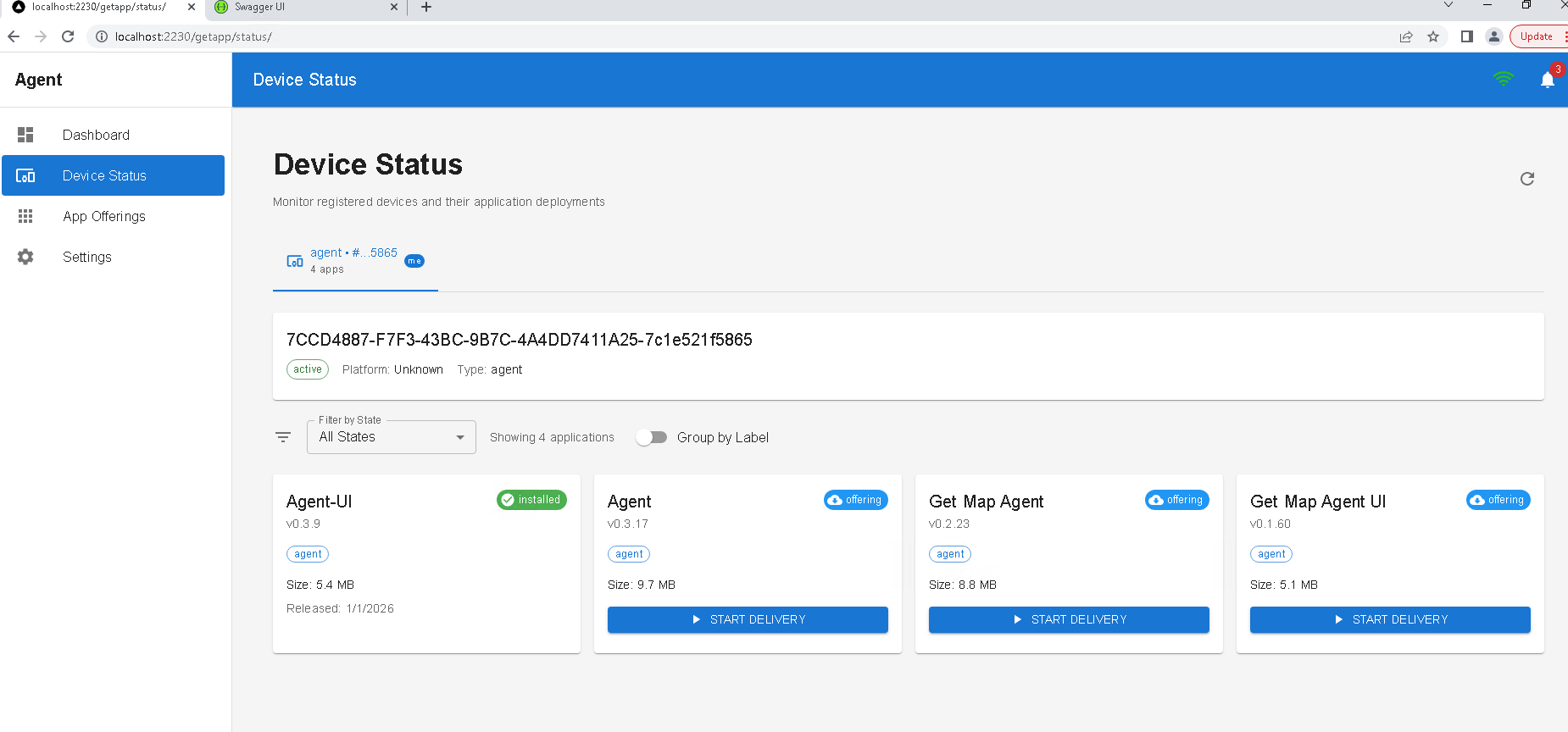
Another option, which provides a more detailed view, is to switch to Device Status in the left-hand menu.
From there, you can review the device status and trigger downloads with additional context.
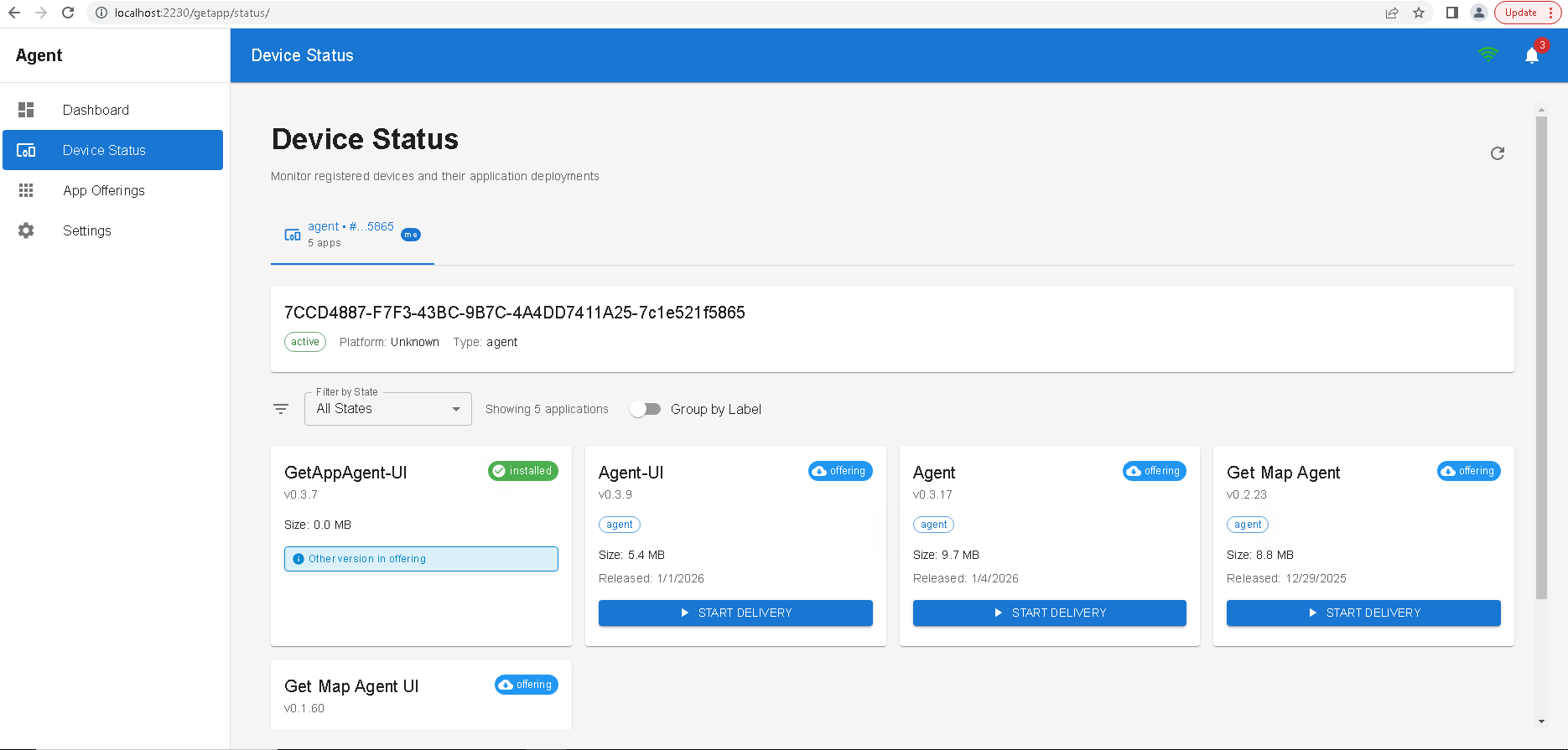
When you select START DELIVERY, the Agent begins downloading the selected application from the server.
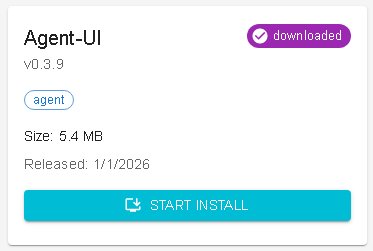
Once the download is complete, the button changes to PRESS INSTALL.
Deployment
Deployment (installation) occurs after the download has finished and you select PRESS INSTALL.
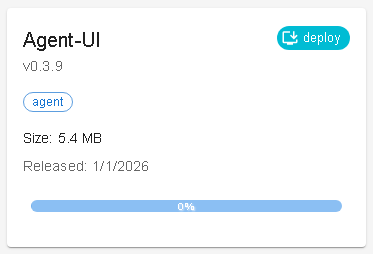
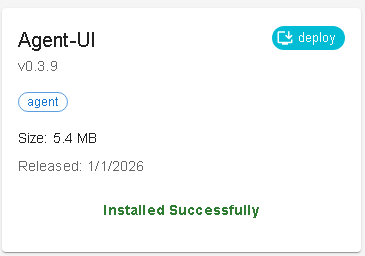
Once installation is complete and the view is refreshed, the application status changes to Installed.
Data Location
Application data is stored in different locations depending on the operating system and it contains analytics data, configuration files, logs and all the downloads that the agent made.
Windows
On Windows, data is stored in:
C:\ProgramData\GetAppData\data\comps
Red Hat–based Linux Distributions
On Red Hat–based Linux distributions, data is stored in:
/var/lib/getapp/data/comps